
Getting Started with Sparki
Launch one complete customer path from portal to booking.

First customer path
Start with one complete customer path, then tune the rest.
When these four pieces work together, customers can find a project, choose a time, and land in your team's follow-up flow without extra admin.
 Portal
Give customers one clear place to start for an office or brand.
 Project
Turn the first listing or service into something customers can act on.
ContentPut the action where customers can find it, instead of leaving it hidden in setup.
 Agenda
Add real availability and test the booking before sharing it.
The quickest way to make Sparki useful is to build one complete customer path. Create the portal, add one project, place that project in the portal content, and add a few appointment times to the connected agenda. After that, a customer can open your portal or plugin, find the project, and choose a time without your team arranging everything manually.
In Sparki, the technical word integration means the portal and plugin setup that belongs to your office or brand. Most realtors can think of it as the customer-facing Sparki environment: the portal is the full customer page, and the plugin is the version you can place inside your own website.
0. Create Your Account
Sign up at admin.sparki.app with your name, email, and a password — no credit card required. After sign-up, Sparki takes you straight into creating your first portal.
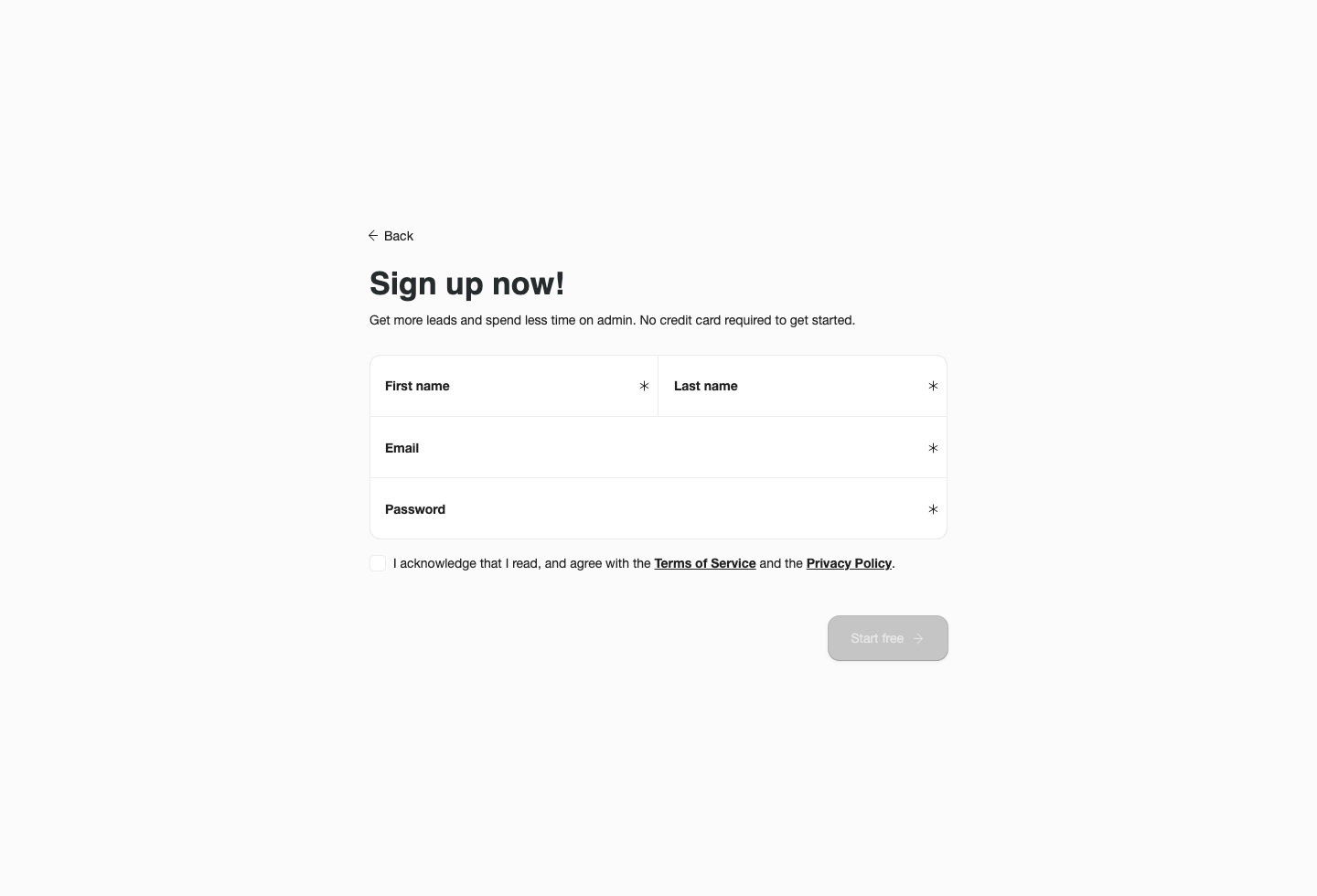
Create your account once; every portal and project you set up later belongs to it.
1. Set Up the Portal
On the portal setup screen, add a title (your office or brand name), a logo, and an optional description. This creates the foundation for both the portal and plugin. The notification email, default language, appointment reminders, and other options are configured afterwards in Portal → Settings — see the Settings page.
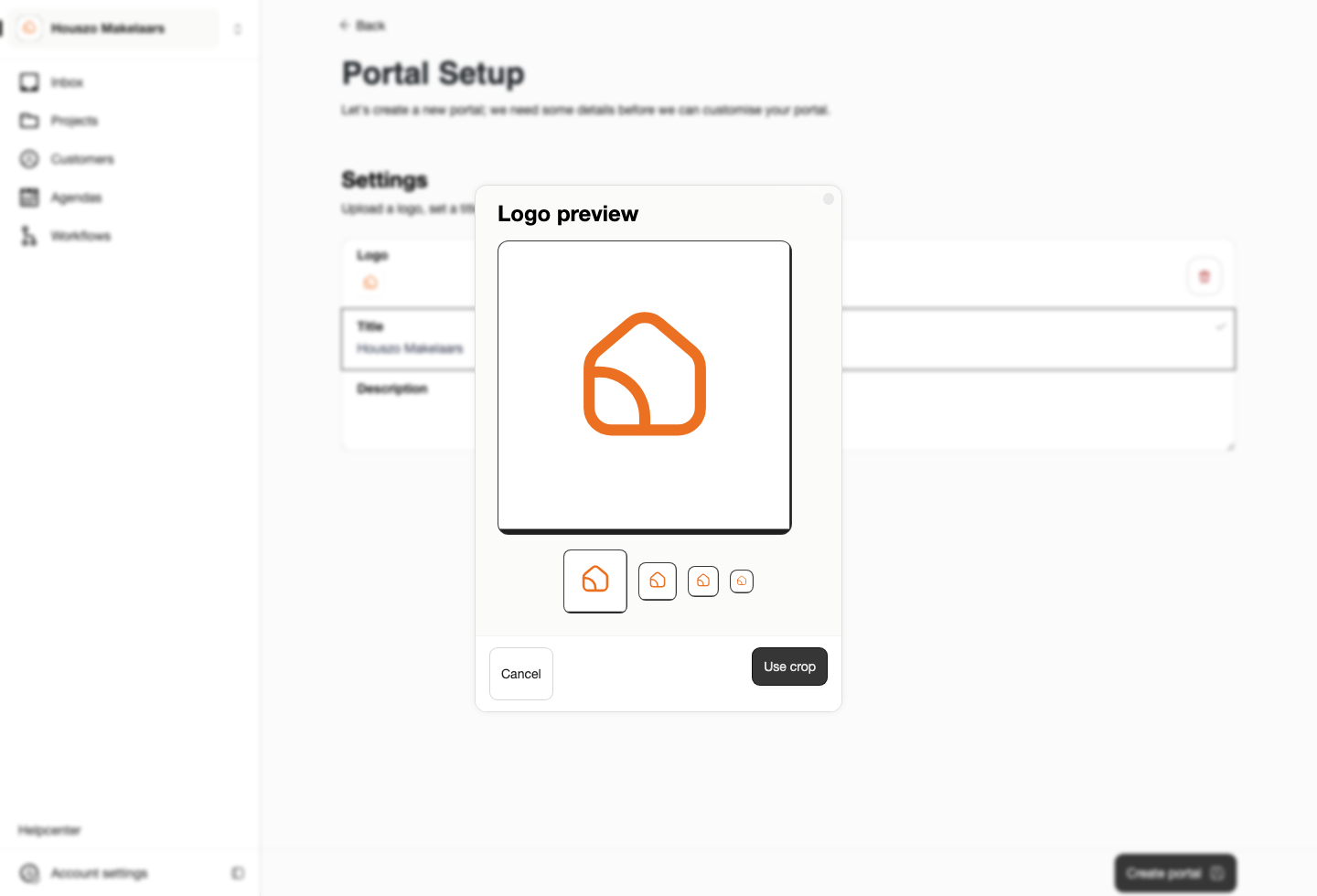
The portal setup screen asks for the title, logo, and description of your portal.
Once the portal is created, Sparki opens the dashboard for that portal. If your company manages more than one portal, always check that the correct portal is selected before editing projects, content, agendas, members, or billing.
2. Create the First Project
Open Projects and create a new project. For a listing, this can be a home for sale or rent. For a service, this can be something like a valuation, intake call, viewing request, or advisory appointment.
Add a clear title, description, price or service information, and a thumbnail image. If customers should book directly, keep appointment booking active and make sure the project has at least one connected agenda. Members need the Edit projects role to create or update projects.
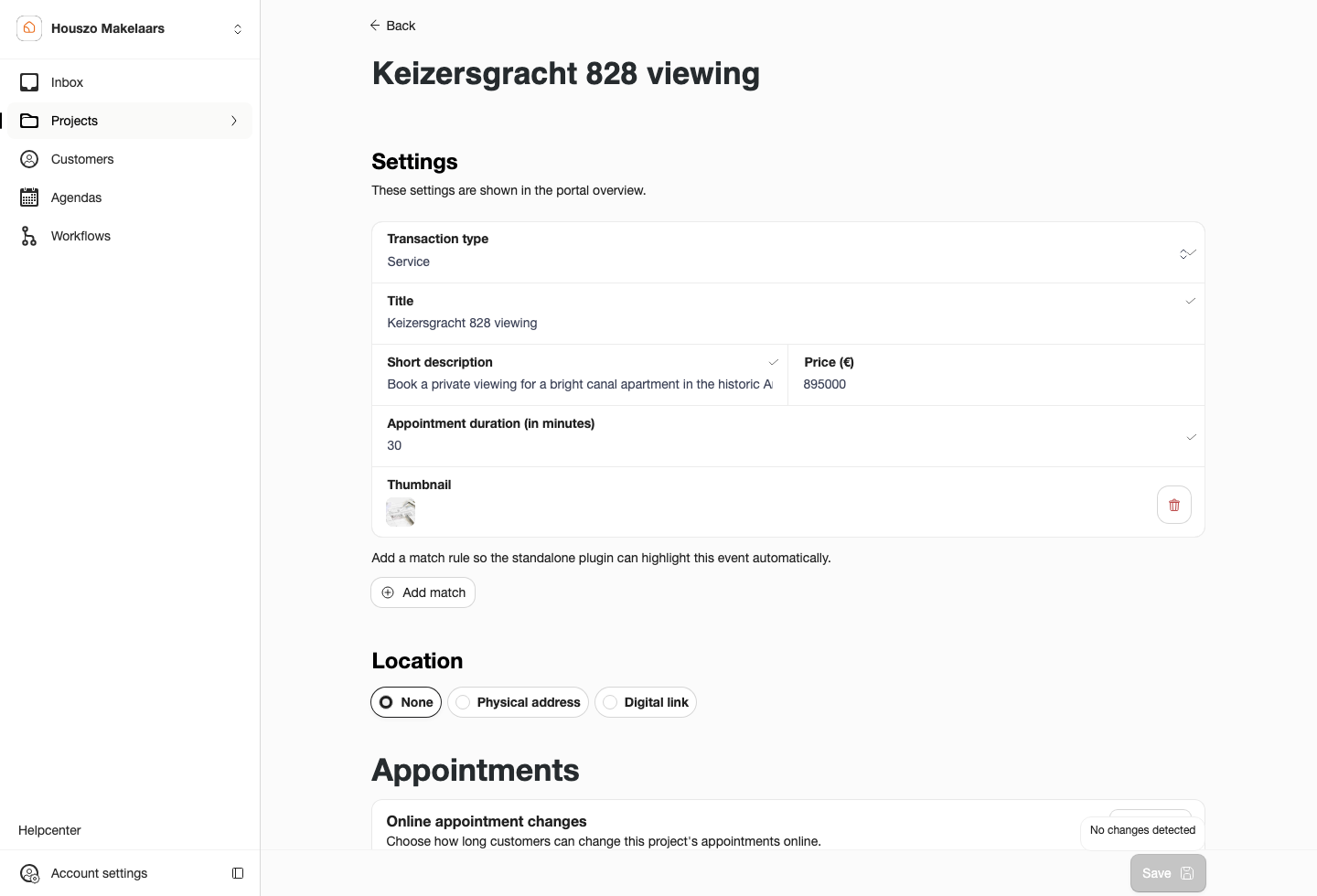
Project settings hold the details customers read and the connected agenda they can book.
3. Add the Project to Portal Content
Creating a project does not automatically mean every customer sees it as the first item in the portal. Open your portal, stay on the Content tab, and choose New → Link. Search for your project and select it, then set the title and description customers will see. (The other New options — External Link, Ask Question, WhatsApp, Call us — add non-project actions; Collection and Workflow are available on paid plans.)
This step is important because Content is the customer-facing menu for the portal and plugin. Projects live in Projects, but customers discover them through portal content, project pages, direct links, the plugin, or website match rules.
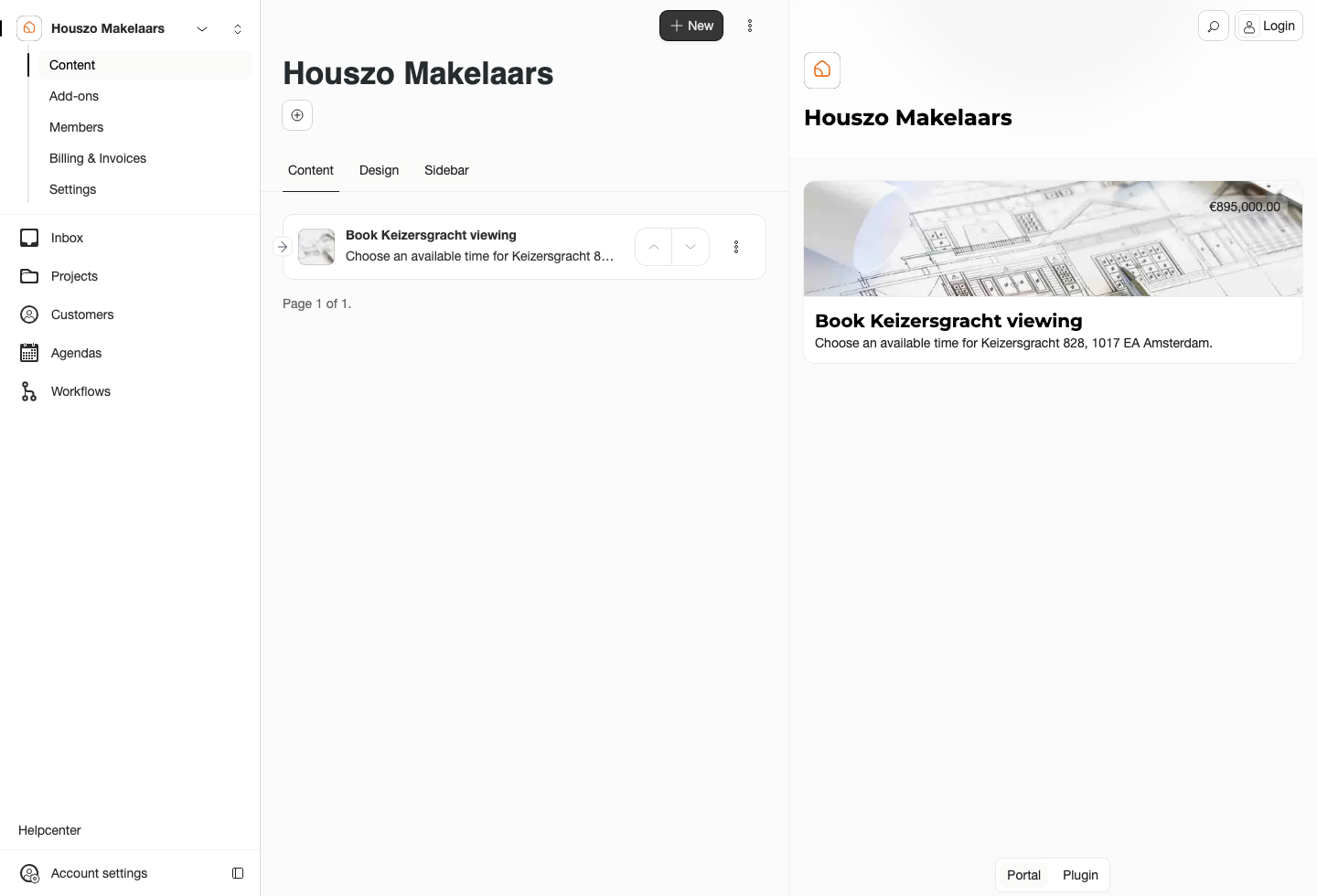
The Content page decides which projects and actions customers can open from the portal and plugin.
4. Fill the First Agenda
Open Agendas, choose the agenda connected to the project, and add the first available appointment slots. These slots become the times customers can choose from the portal, plugin, or a standalone appointment link.
For a simple first setup, add a few slots on upcoming days and test the customer flow yourself. Open the project from the portal or plugin, choose a time, and confirm that the appointment appears in Inbox and on the customer's timeline.
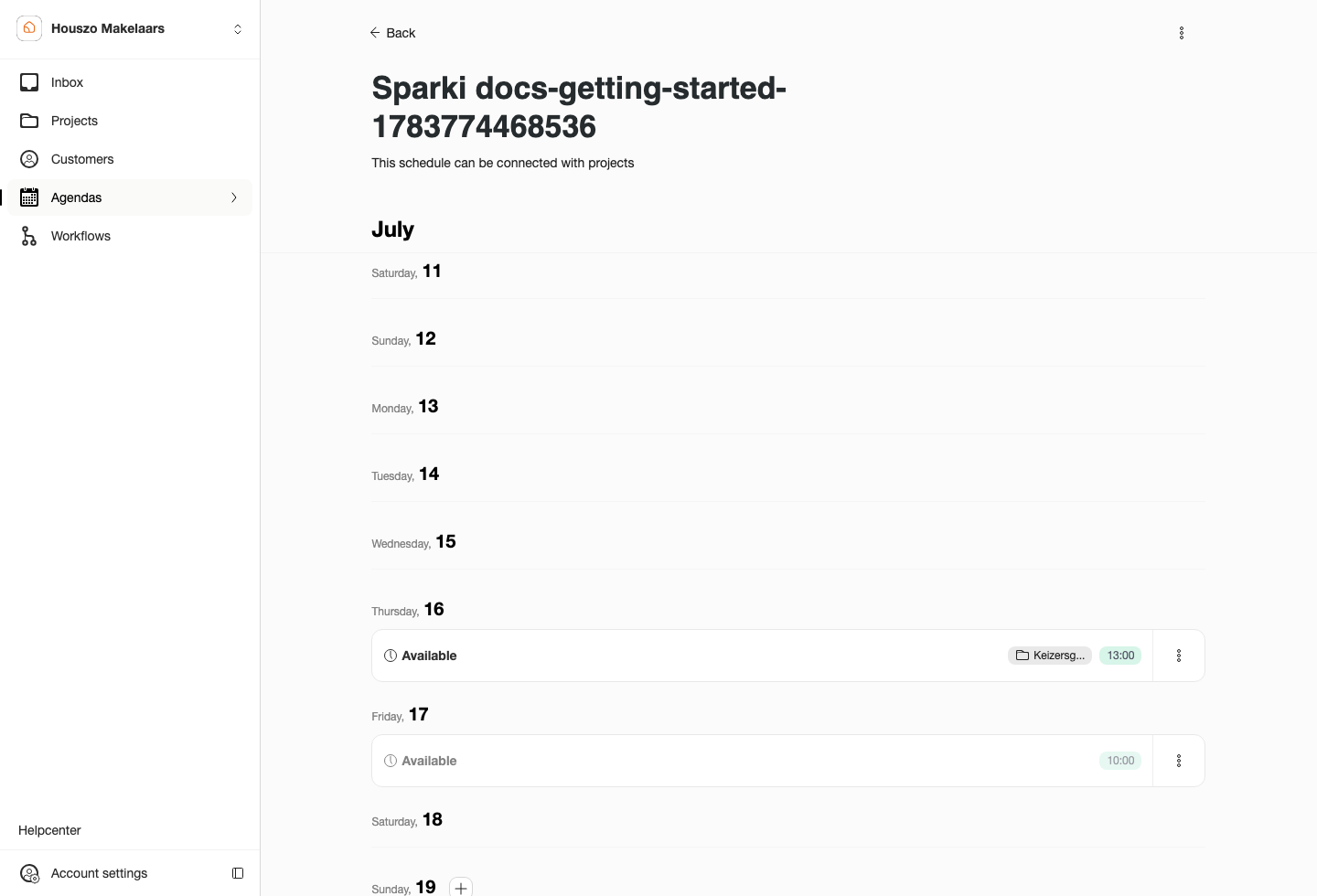
The agenda screen shows the first open appointment slots customers can choose.
A Good First Check
Before sharing Sparki with customers, open the portal like a customer would. Check that the portal name and logo are correct, the project appears in the right place, the appointment times are available, and a test interaction lands in Inbox. If all four pieces work together, your first customer path is ready.