
Appointment
Read, move, cancel, and follow up on customer bookings.

Interaction type
Appointments are created when a customer chooses a time for a project, service, standalone flow, or agenda.
The appointment record connects the customer, project, agenda, date, time, location or meeting link, and current status.
 Inbox
InboxUse the Appointments view when your team needs to handle bookings without scanning every interaction type.
 Agenda
Check the connected agenda when you need availability context or want to move a booking.
 Customer timeline
Open the customer when you need messages, documents, and workflow results around the same appointment.
Appointments can come from the portal, plugin, a standalone appointment link, or the dashboard when a team member books on behalf of a customer. A future appointment can usually be cancelled from the appointment details when your role allows it.
Customer Booking Flow
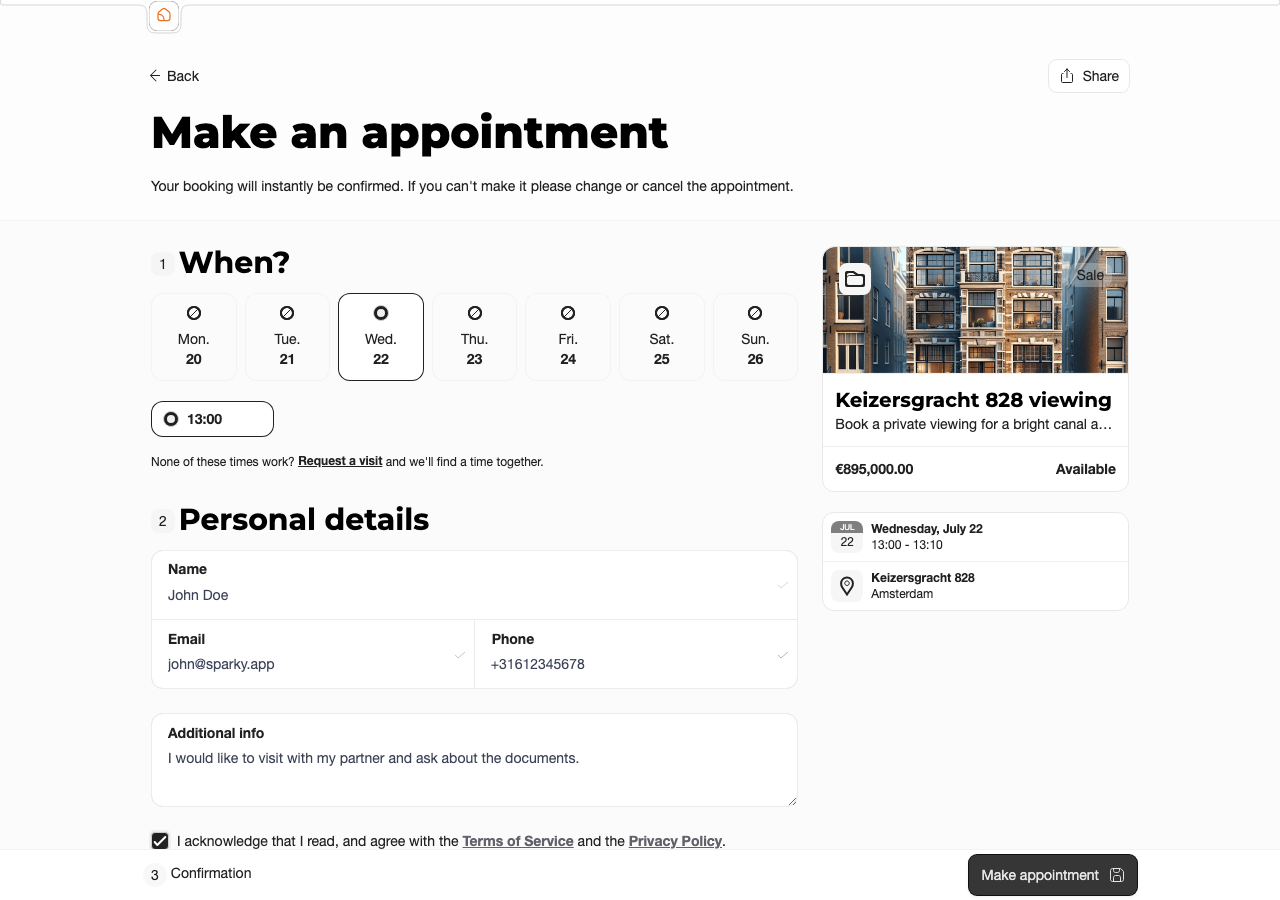
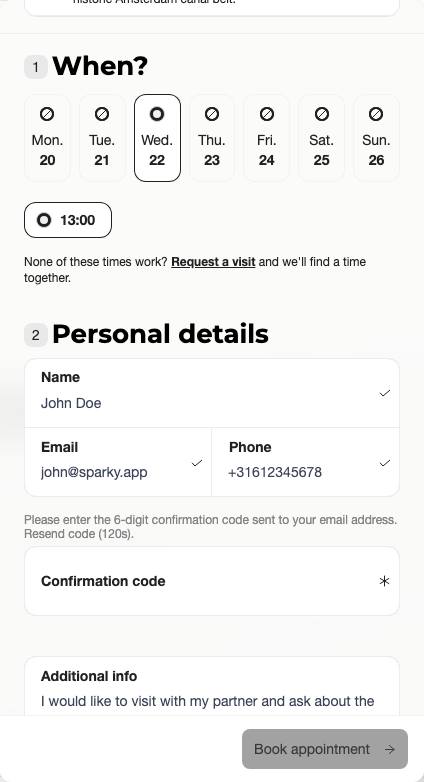
A normal customer booking starts on a project, portal content item, plugin action, or standalone appointment link. The customer chooses an available slot, fills in their contact details, and confirms the appointment. After confirmation, Sparki stores the appointment, shows it in Inbox, links it to the customer timeline, and sends customer communication according to the portal settings.
When a supported CRM add-on is connected, Sparki can synchronize the appointment back to the CRM agenda together with the linked project or object and scheduling information. Workflows, messages, documents, and most communication history remain in Sparki unless a specific integration supports exporting them.
Customer Changes and Cancellation
Customers can change or cancel their own appointment from the confirmation page (or the appointment in their portal dashboard) until the change window closes. The window is controlled by the Allow changes setting in Portal → Settings (for example, 24 hours before the appointment starts).
While the window is open, the customer sees Change your appointment with the available days and times, a Reschedule action, and a Cancel appointment action. Cancelling frees the time slot again. Once the window has closed, the appointment is locked and the customer needs to contact your office to make changes — the team can still move or cancel the appointment from the dashboard.
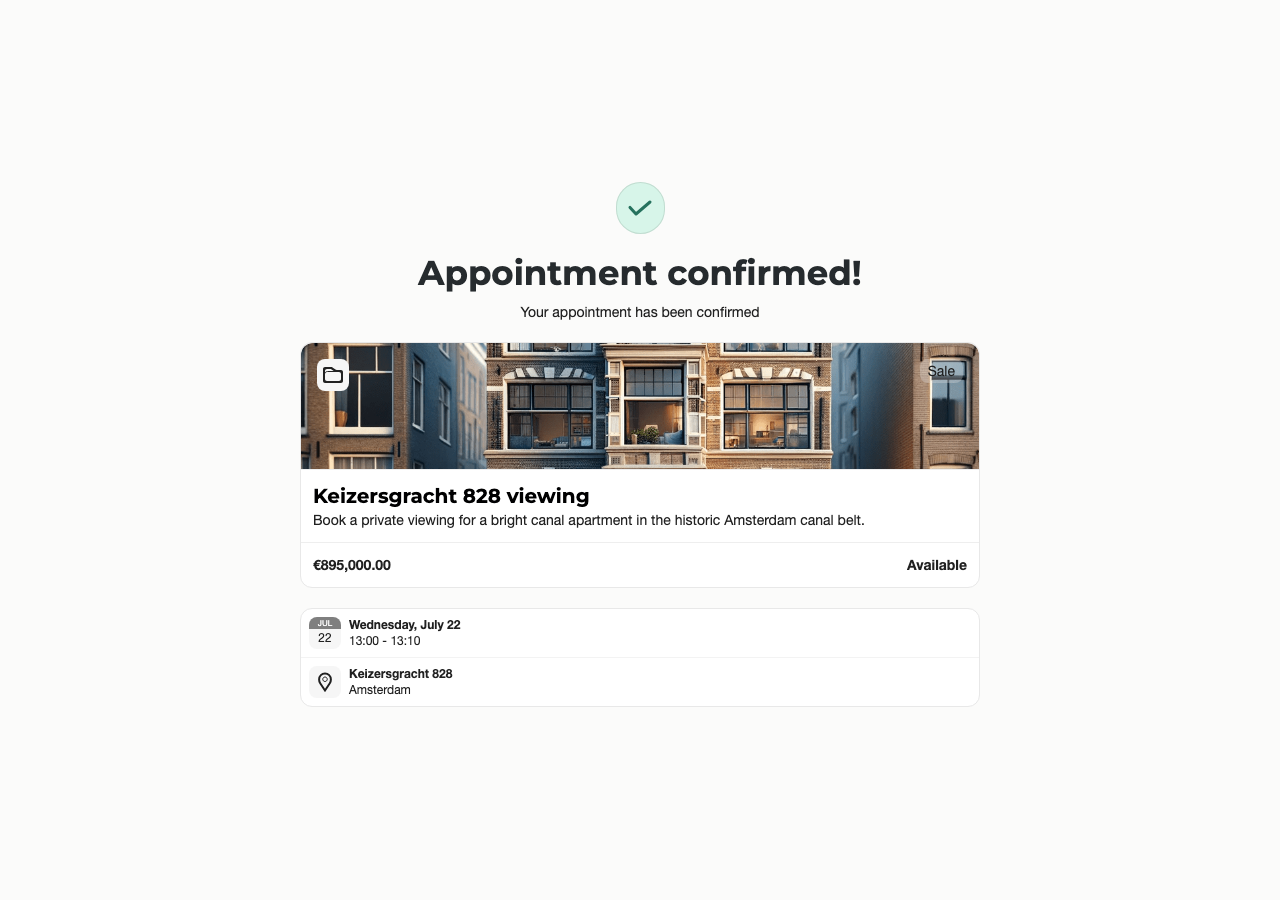
Inside the change window, customers can pick a different time, reschedule, or cancel without contacting the office.
What to Check First
Open the appointment and confirm the customer, project, agenda, date and time, and status. If the appointment has a physical location, check the address. If it has a digital meeting, confirm that the meeting link is present.
Appointments can be moved between connected agendas when another connected agenda has available time. If no available slots are found, Sparki tells you that the move is not possible.
When an appointment is rescheduled, Sparki updates the existing appointment instead of creating a duplicate timeline item. The updated appointment moves to its new time in the inbox and timeline, and customer update emails or reminders depend on the portal settings.
Record a Viewing Outcome
From the day of the appointment, open its details and choose No-show, Attended, interested, Attended, not interested, or Attended, follow-up needed. Sparki records who changed the outcome and when. Use the trash button next to the outcome to clear it.
In Inbox → Appointments, open the filters to show one outcome or choose Unknown for appointments without an outcome. The same outcome filter is available in a project's communication overview.
When an Appointment Needs Follow-up
Use the customer timeline when the booking has related messages, workflow answers, documents, or bid activity. The timeline keeps the context together so the realtor can see what happened before calling or emailing the customer.
Plan and Role Notes
Members need portal access to view interactions. Agenda edit access may be needed to change availability or manage a connected agenda. Some appointment features, such as calendar sync, standalone flows, time proposals, or multi-slot appointments, depend on the active plan.