
Website Plugin
Let customers act from your own website pages.

Website plugin
Let customers book, ask, bid, or complete a workflow without leaving the page they are on.
Use Installation from Content to install the plugin, verify the live website, and decide whether Sparki opens from the default button or your own website buttons.
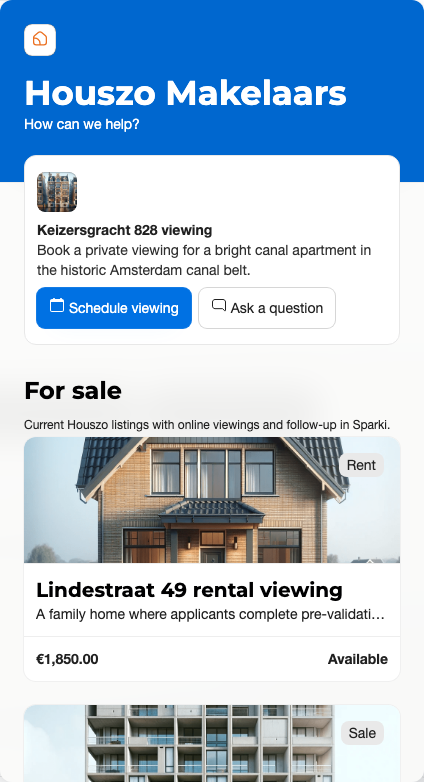
For what the dialog looks and feels like to a website visitor — opening it, booking, requests, and the shared customer history — see Plugin for Customers.
Common Website Flows
The plugin can open a general appointment flow, an appointment request flow, a highlighted project, a project-specific question form, a linked workflow, a pre-validation flow, or a bidding flow when the project supports it.
Use website match rules when a listing page should open the matching project. Use standalone or custom button actions when your own website design already has a clear call to action.
Product content from made-to-order portals links customers back to the portal home page so they can order there. The plugin does not currently run made-to-order product checkout directly inside the plugin.
Floating Button and Custom Buttons
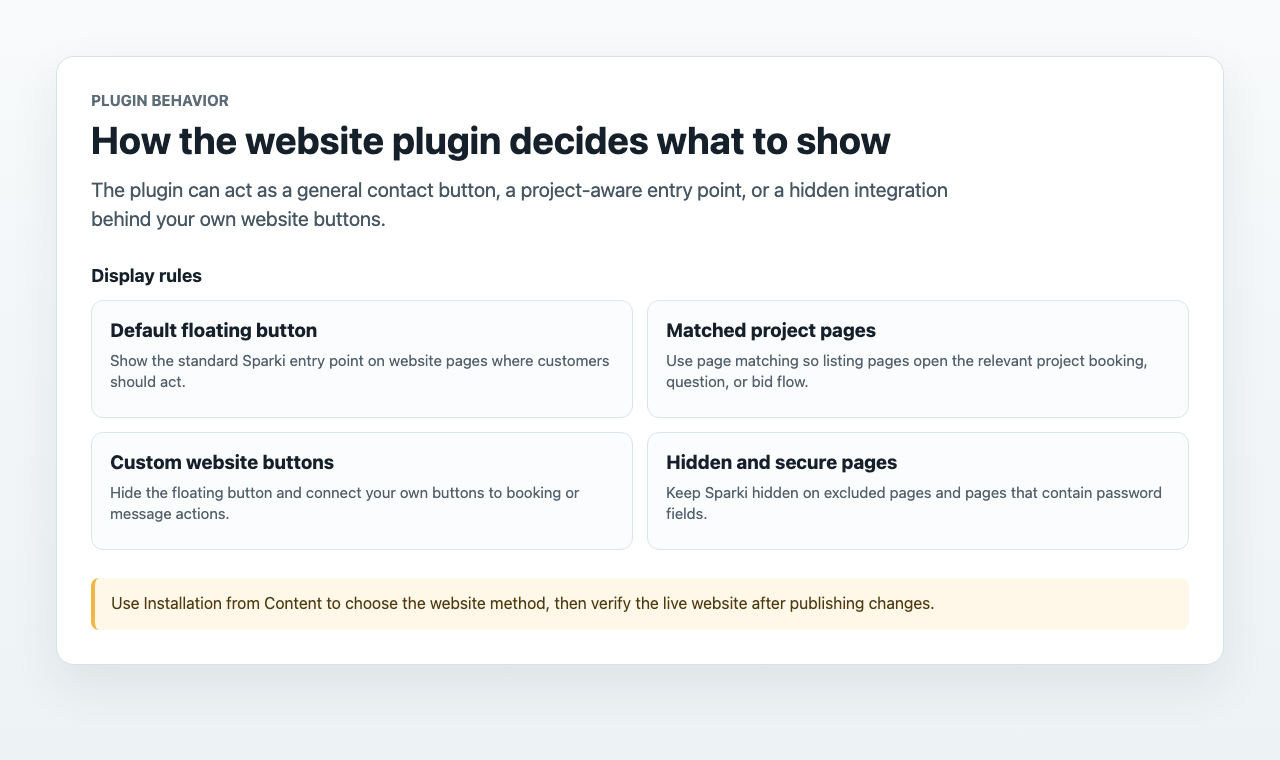
The default floating button is useful when every visitor should see that they can contact or book with your team. If the website already has strong buttons, hide the floating button and connect your own buttons to Sparki actions instead.
The plugin stays hidden on the pages you exclude in your display rules. To keep it off login, checkout, or other secure pages, exclude those page paths — or add the sparki-default-hide marker to the page so the plugin does not appear there.
Open Sparki Links in the Plugin
First make sure the plugin JavaScript is active on the website page. Install it from Content > settings menu > Installation, publish the website, and use Verify live website.
You can then use a regular link copied from a project's Share action. When a visitor selects a supported link, the plugin keeps them on the current website page and opens the matching project action inside the plugin. No custom class or data-* attributes are needed.
Supported links are:
- The project's new appointment link opens its booking form.
- A new appointment link configured as an appointment request opens its request form.
- A project link with the ask a question action opens its question form.
<a href="PASTE_NEW_APPOINTMENT_LINK_FROM_SPARKI">Book a viewing</a>

<a href="PASTE_APPOINTMENT_REQUEST_LINK_FROM_SPARKI">
  Request a viewing
</a>

<a href="PASTE_PROJECT_QUESTION_LINK_FROM_SPARKI">Ask a question</a>
The link must belong to the same portal as the installed plugin. Links added after the page loads are also detected. A plain project details link or bidding link remains a normal link to the portal.
Custom Button Markers
Use a custom button marker when you do not have a supported Sparki action link or want to open the plugin home screen. Add sparki-open-on-click to any button or wrapper that should open the plugin. Without extra attributes, it opens the plugin home screen.
<button class="sparki-open-on-click" type="button">Contact us</button>Use data-path when a button should open a specific flow. Add the matching project ID when the action belongs to one project.
<button
  class="sparki-open-on-click"
  data-path="appointment"
  data-event-type-id="PROJECT_ID"
  type="button"
>
  Book a viewing
</button>

<button
  class="sparki-open-on-click"
  data-path="message"
  data-event-type-id="PROJECT_ID"
  type="button"
>
  Ask a question
</button>
For an appointment request instead of a direct booking flow, add data-pre-validation-mode="request" to the appointment button.
<button
  class="sparki-open-on-click"
  data-path="appointment"
  data-event-type-id="PROJECT_ID"
  data-pre-validation-mode="request"
  type="button"
>
  Request a viewing
</button>
Add sparki-toggle-initially when the plugin should open as soon as the page loads. Add sparki-default-hide on pages where the default floating launcher must stay hidden while your own buttons remain available.
Booking, Questions, and Workflows
For booking, the plugin can start from a general schedule or from a matched project. For questions, it can open a general message form or a project-specific question. For workflows and pre-validation, it opens the configured questions before sending the customer to the correct result.
If a workflow contains file-upload fields, customers can upload files for those fields only. A workflow without file-upload fields should not expose a file uploader.
Verify After Publishing
After changing the plugin snippet, Framer code, Google Tag Manager setup, WordPress setup, match rules, or button behavior, publish the website and use Verify live website from Content > settings menu > Installation. In the verifier, submit the live page with Verify.