
Triggers
Let Sparki react to customer, appointment, tag, and project events.

Automation
Turn important moments into the right follow-up.
Use triggers to send replies, update tags, invite customers to the portal, notify external tools, or start a follow-up when something changes in Sparki.
Where to Find Triggers
Open Triggers in the dashboard. The overview shows every trigger for the active portal, whether it is enabled, and which action it runs.
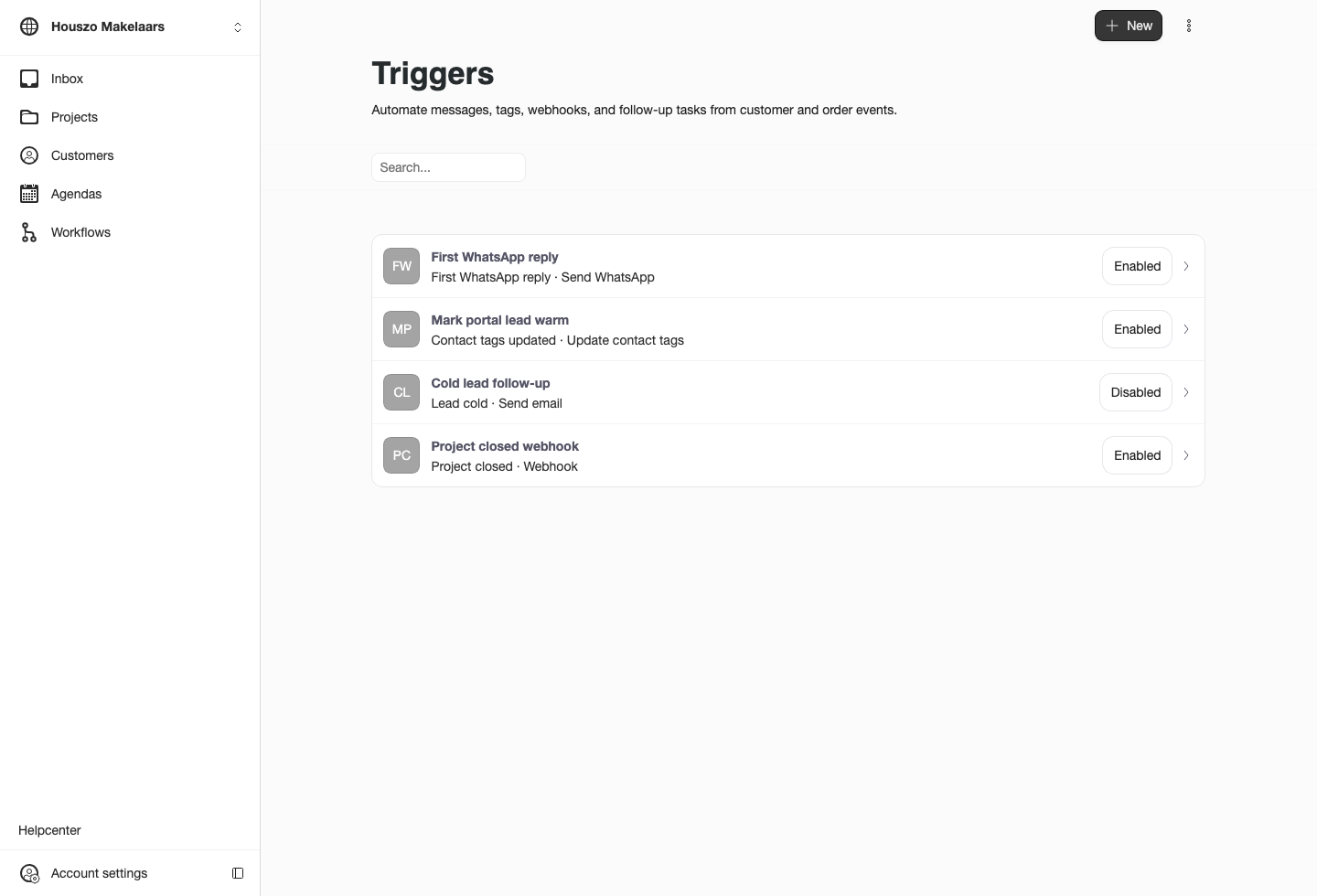
Use the overview to check active automations before editing a single rule.
Choose New to create a trigger. Sparki first asks for the trigger name, event, and enabled state. After that, the full editor opens.
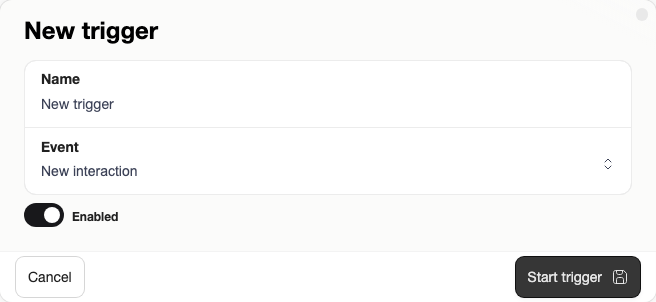
The first step keeps the trigger easy to recognize before you configure filters and actions.
How a Trigger Works
A trigger has three parts:
 Event
EventThe moment Sparki listens for, such as a new interaction, a first WhatsApp message, a changed tag, or a closed project.
 Filters
Optional limits that decide whether this rule should run for a specific customer, project, provider, tag, or cold-lead threshold.
 Actions
The ordered work Sparki performs after the event matches, such as sending WhatsApp, adding tags, sending email, or calling a webhook.
Configure Filters and Actions
Open a trigger to edit the matching rules and action list. Keep trigger names specific enough that another team member understands what happens without opening the rule.
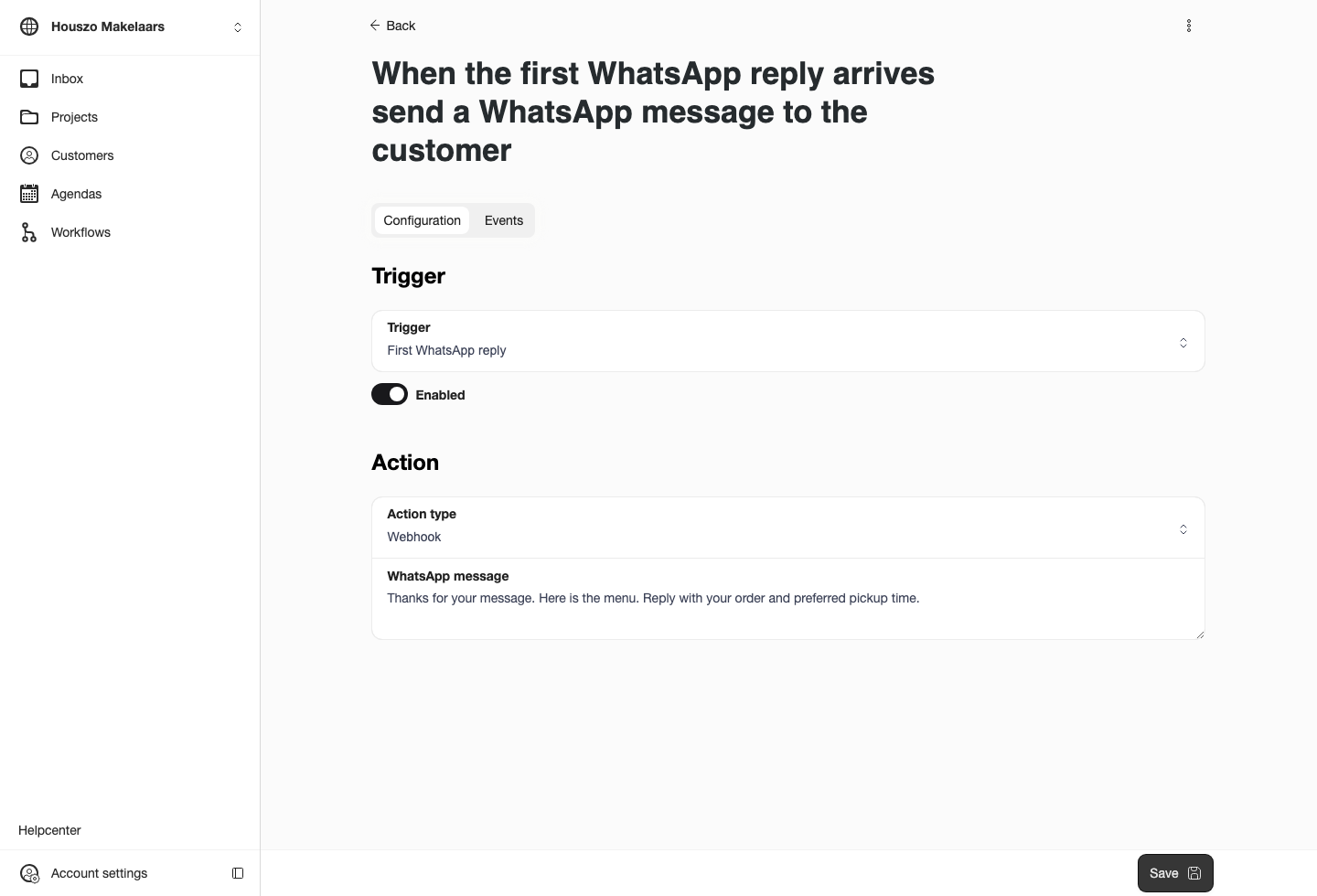
Filters narrow when a trigger runs. Actions run from top to bottom.
Common event examples:
- First inbound WhatsApp sends a welcome or menu reply when a customer sends their first WhatsApp message.
- First portal-web message can send the same kind of first response for portal messages.
- Contact tags updated reacts when the customer tag list is changed.
- Lead cold runs after a customer has not sent a new inbound interaction for the configured number of days.
- Appointment cancelled, rescheduled, or completed reacts to appointment lifecycle moments.
- Project closed runs when a project status moves into closed or completed.
Common actions:
- Send WhatsApp sends a message through Twilio, Baileys, or the automatic provider choice.
- Update contact tags adds one or more tags to the customer.
- Invite to portal sends a portal access email with a fresh magic key.
- Send email sends a custom email and can include portal access.
- Webhook posts a signed payload to an external system.
Safety and Review
Each run creates an execution record so the team can review whether a rule succeeded, failed, or was skipped. Sparki also marks trigger-created WhatsApp interactions so they do not immediately trigger the same automation again.
For tag-based automations, note that the current tag event is broad: it runs after the customer tag list changes. Separate tag added and tag removed events are a good next improvement when the team needs automations based on the exact tag transition.
For cold leads, Sparki schedules a check after inbound customer activity. If the customer replies again before the check runs, the old check is skipped and a new one is armed from the latest inbound interaction.
Plan and Role Notes
Members need Edit workflows to create or change triggers. Keep webhook secrets private and test new automations with a small customer or project before relying on them for live follow-up.