
Plugin for Customers
What customers experience when the plugin runs on your website.

Customer experience
The plugin brings the portal's actions into your own website.
Customers stay on the page they were reading — a listing, a service page, your homepage — and book, ask, or apply from a dialog that opens on top of it.
For installation, match rules, and button wiring, see the Plugin integration guide. This page describes what the customer experiences once it runs.
Opening the Plugin
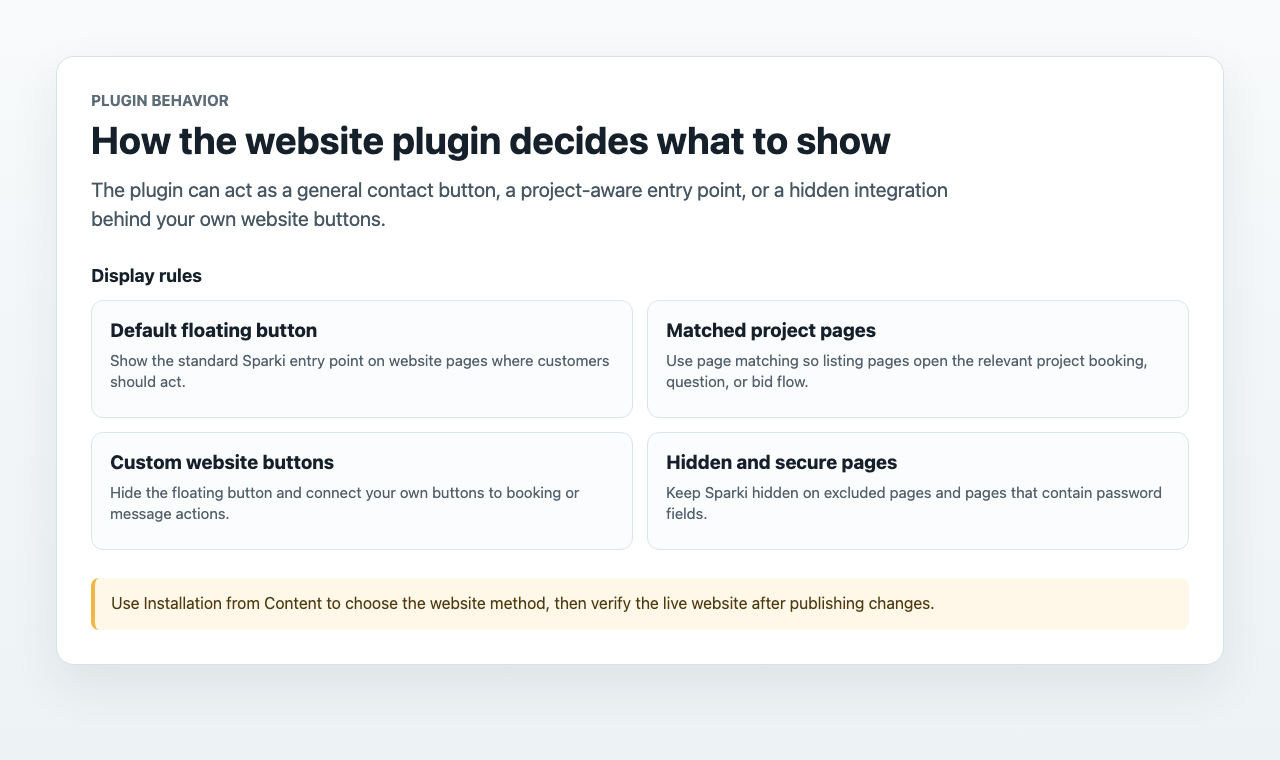
Customers open the plugin from the floating button (for example Contact) or from one of your own website buttons connected to a Sparki action. A dialog opens on top of the current page with your logo, brand colors, and portal content — the same items you manage in Content.
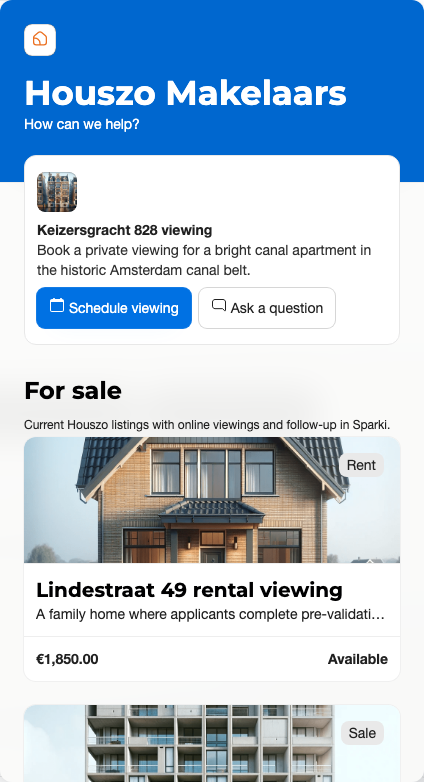
The plugin dialog mirrors your portal branding, so the website and the flow feel like one experience.
On a listing page with a matching website rule, the plugin skips the menu and highlights that project directly, so the customer's next step belongs to the property they were already viewing.
Booking From the Website
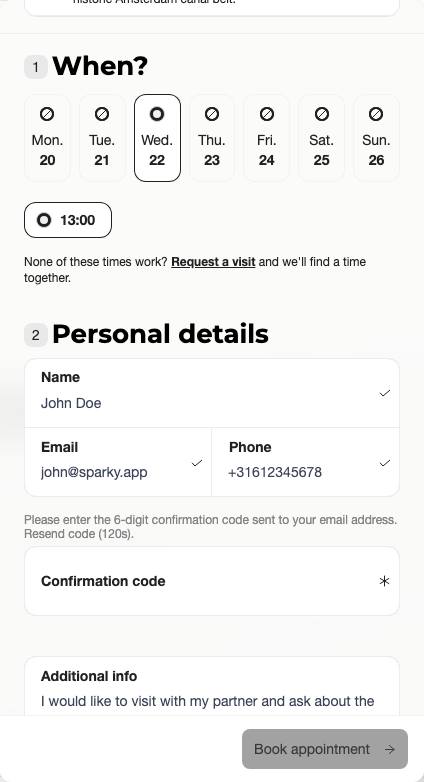
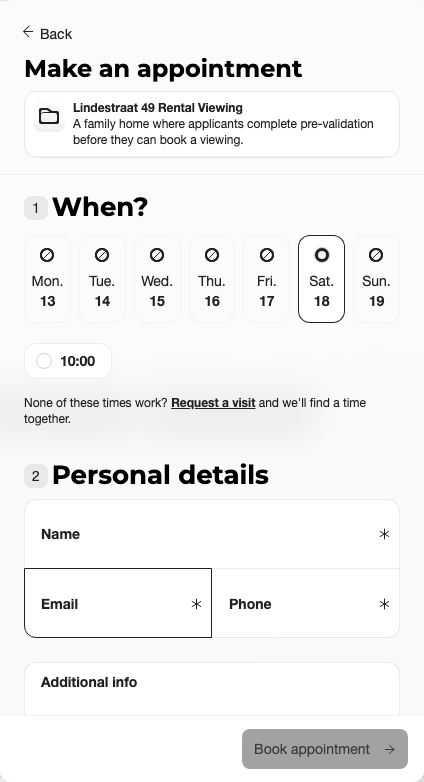
A project action opens the appointment flow inside the dialog: pick a day and time, fill in name, email, and phone, agree to the terms, and confirm.
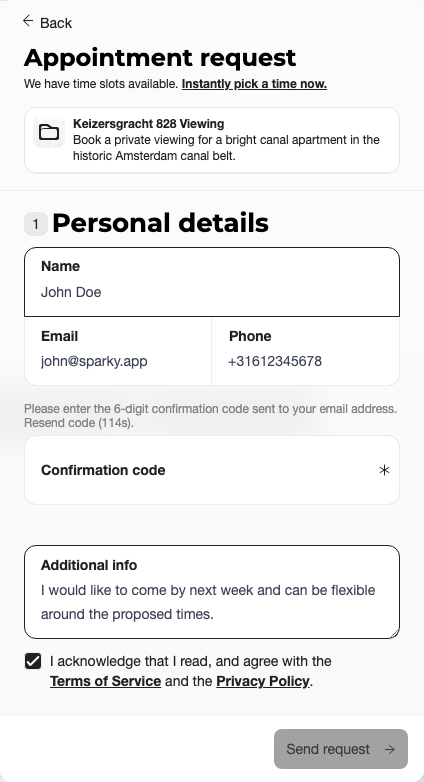
When no bookable times are available — or when the project is configured for requests — the plugin switches to the Appointment request flow, where the customer can propose moments that suit them ("What works for you?").
The same portal and project appointment boundaries apply in the plugin. The portal setting is the default; a project can override the online change rules when one project needs a different booking boundary.
Questions, Workflows, and Bids
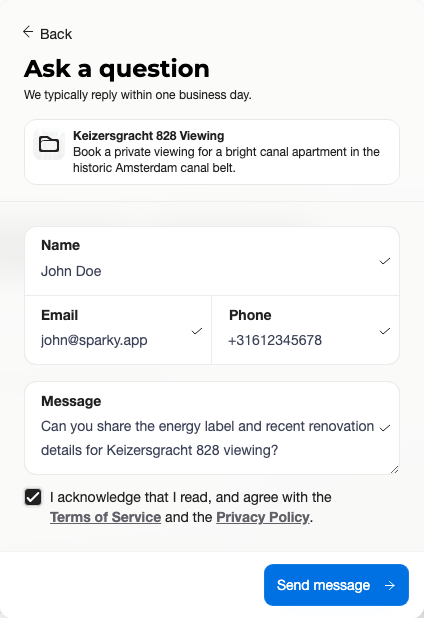
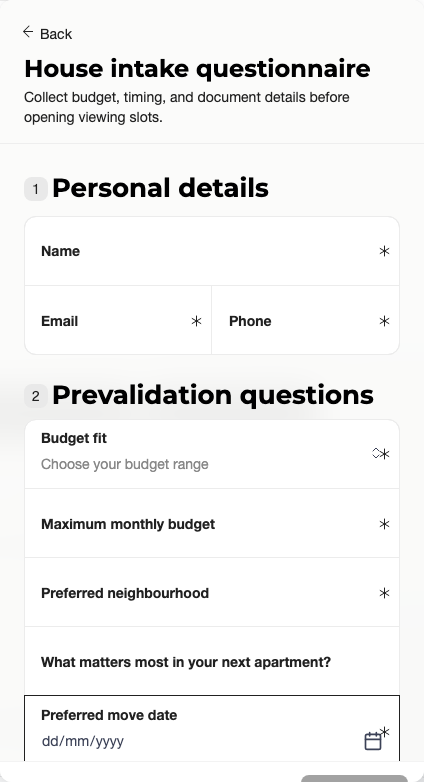
Depending on your content and project setup, the same dialog can open a message form, a guided workflow (including pre-validation before booking), or a bidding flow. Workflows only show a file uploader when the workflow actually contains file-upload fields.
One Customer, One History
The plugin and the portal share the customer's session and history. A customer who booked through your website is recognized in the portal afterwards — their details are prefilled, and the appointment, messages, and emails all appear on the same Customer Portal and timeline. Confirmation and reminder emails work exactly as they do for portal bookings.
What Customers Never See
The plugin dialog only exposes customer actions. Your dashboard, other customers' data, and unpublished projects stay invisible. To keep it away from logins or checkouts, exclude those pages in your display rules (see the Plugin integration guide).
FAQ
Why does the plugin not appear on a page? The live website may not be verified, or the page may be excluded by your display rules (for example a login or checkout page you chose to exclude).
Why does the plugin open the generic menu instead of a project? Add or adjust the website match rule for that listing page, or connect your own button with the project action attributes from the Plugin integration guide.
Why does booking switch to a request? No direct slots may be available, the project may use request mode, or pre-validation may send the customer to an appointment request instead of direct booking.
Why is there no file upload? The plugin only shows file upload fields when the workflow contains file-upload questions.
Test It Yourself
Use the plugin on your own website (or the preview in Content → Plugin) and complete one booking end to end. Check that the dialog matches your branding, the confirmation email arrives, and the appointment shows up both in your Inbox and on the customer's Customer Portal.