
Data Export
Take selected dashboard data with you as CSV.

CSV export
Take the data you need into the tools your team already uses.
Export CSV files for reporting, handover, review, or analysis while keeping availability tied to the page, plan, and member role.
When to Export
Use CSV export when you need a spreadsheet for reporting, offline review, accounting, handover, or internal analysis. Good candidates are customer lists, interaction overviews, request lists, document overviews, or filtered project activity.
CSV export is for dashboard records. If you need to move a reusable workflow setup, use Workflow Import and Export instead.
Export Workflow
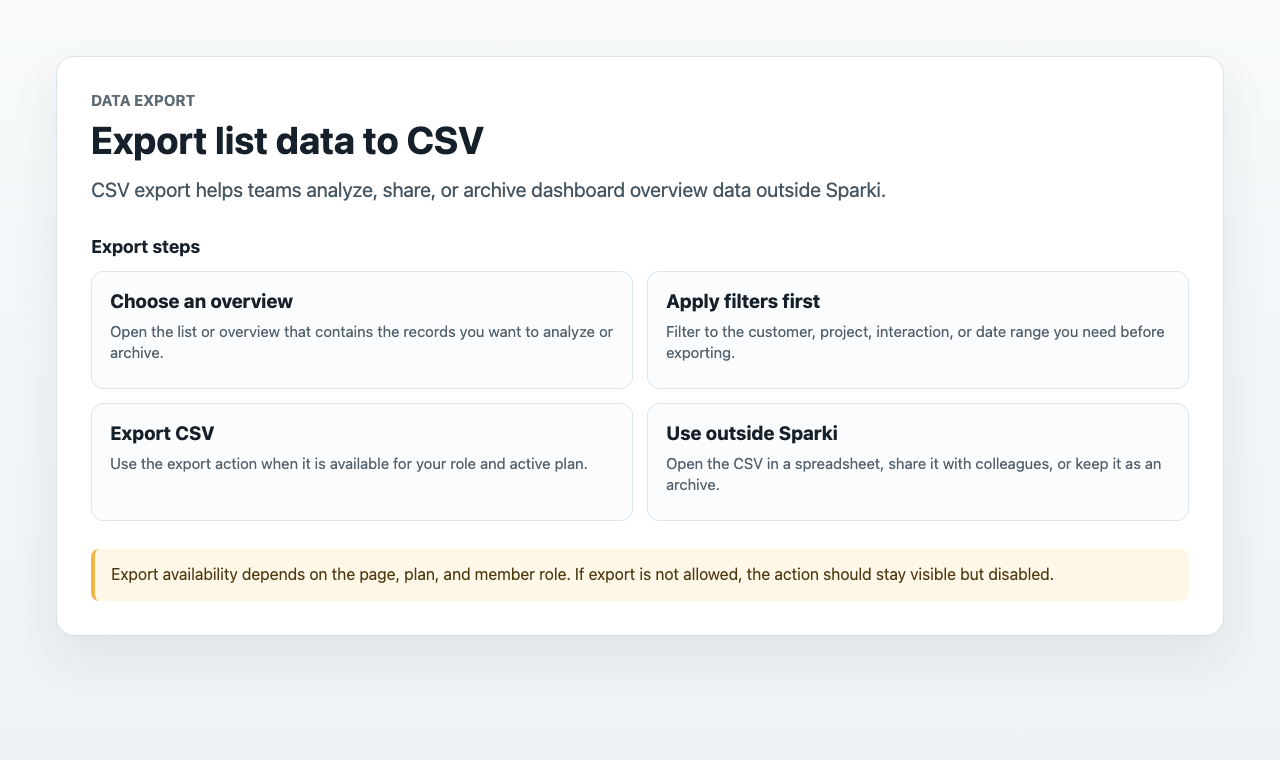
- Open the overview that contains the records you need.
- Apply filters first, such as customer, project, status, date range, or interaction type.
- Use the export action when it is available.
- Open the CSV in a spreadsheet tool or store it in your team's archive.
Permissions
Members need access to the underlying data before they can export it. A member who can view a list may still see export disabled when the active plan or member role does not allow export.
CSV files can contain customer information. Share them only through approved team channels and delete local copies when they are no longer needed.