
How to use the Customer Portal
What customers see publicly and how they use their private Customer Portal.

Customer experience
This is the public portal and private Customer Portal through your customer's eyes.
Use this guide to explain the public portal, the signed-in Customer Portal, and the Customer Account flows to sellers and buyers, to test your own setup like a customer, or to answer "what does the customer see?" questions during onboarding.
The portal is the public customer page of your office or brand. Customers do not need an account or password to start: they can browse projects, book an appointment, or ask a question straight away. When they need private history, settings, or follow-up, Sparki opens their Customer Portal and Customer Account by magic link.
Finding a Project
The portal home shows your logo, title, description, and the content you published (see Content). Customers open a project card to see photos, price, property details such as surface and bedrooms, the location ("Where you will live"), and the actions you enabled.
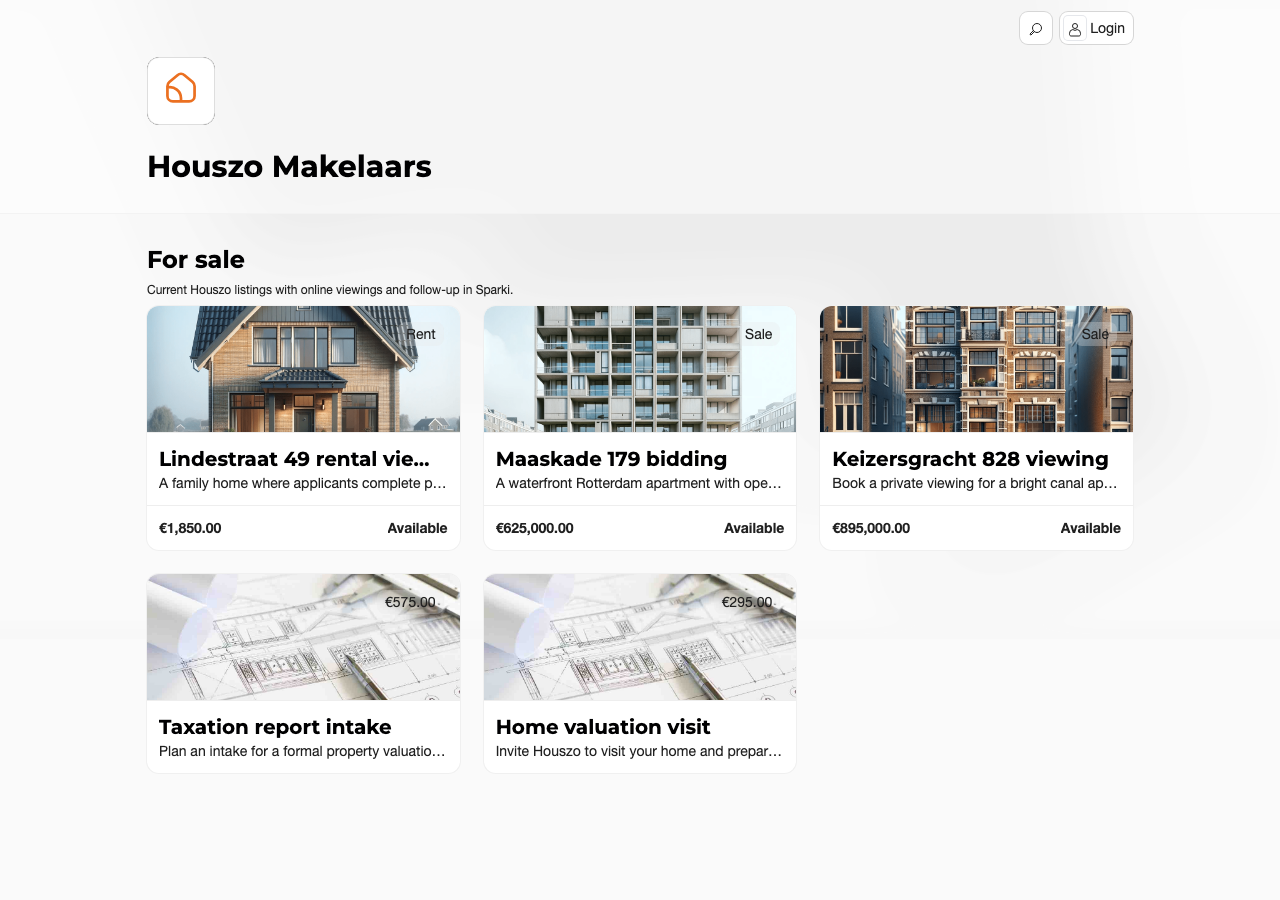
Customers only see what you placed in Content — projects, questions, links, and contact actions.
Booking an Appointment
From a project, Schedule viewing (or the service equivalent) opens the booking page: a strip of days with available times, then name, email, and phone. Booking is instantly confirmed when you offer direct slots; when no times fit, Request a visit lets the customer propose moments instead.
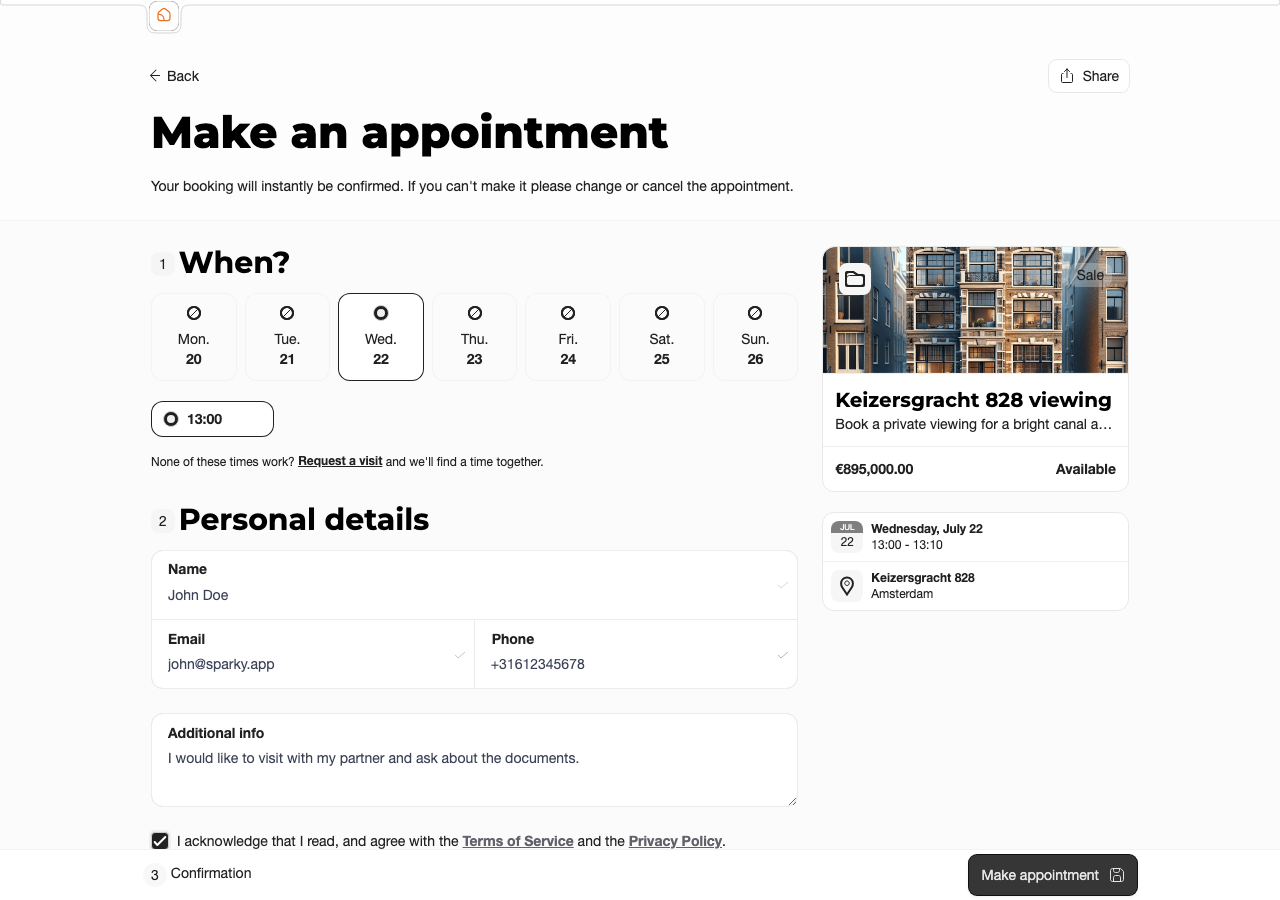
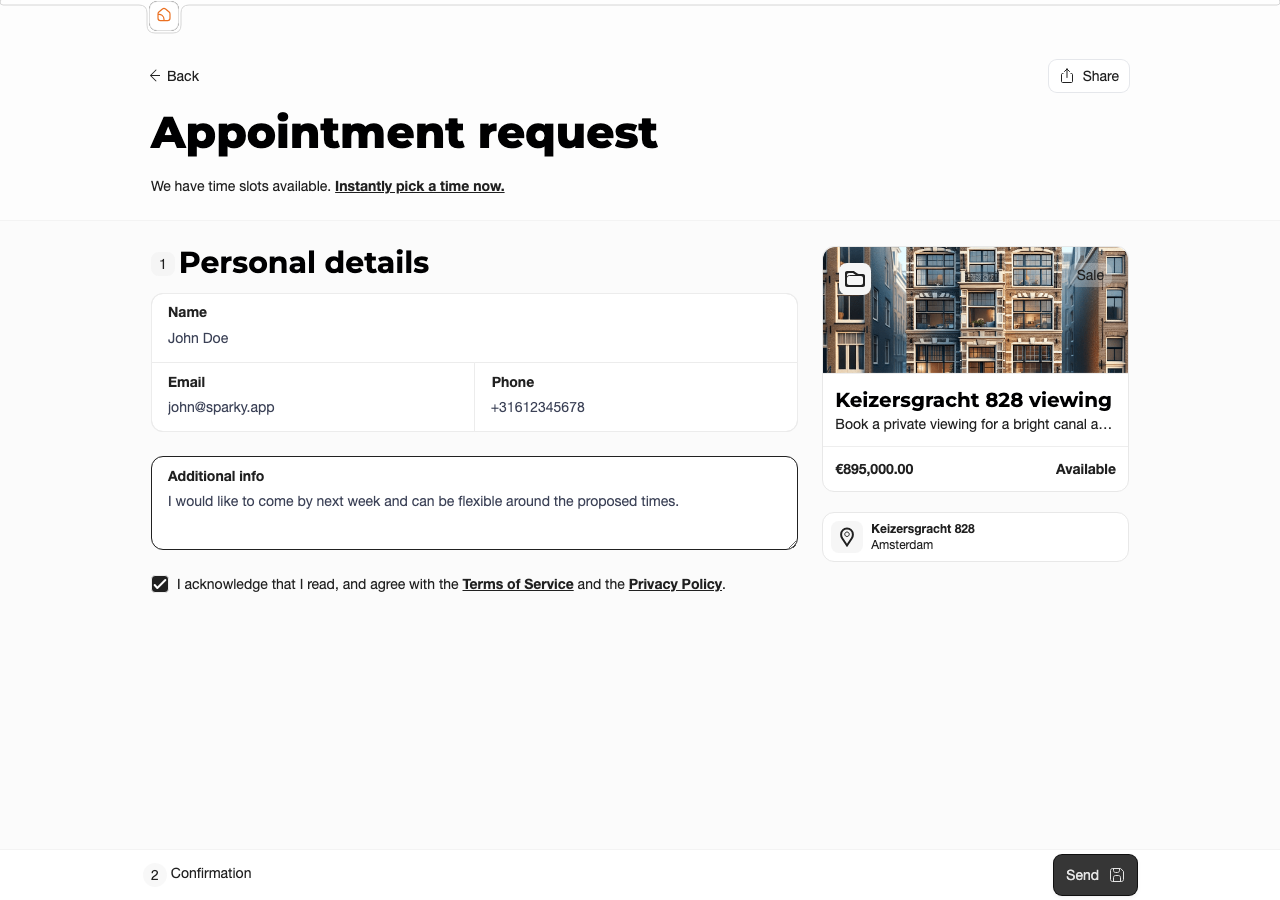
After booking, the customer lands on their appointment page and receives a confirmation email, plus a reminder email before the appointment (see Settings for reminder timing).
Changing or Cancelling
Customers can reschedule or cancel their own appointment while the change window is open — by default until 24 hours before the start. The portal setting is the default; a project can override only the online appointment change rules when one project needs a different booking boundary.
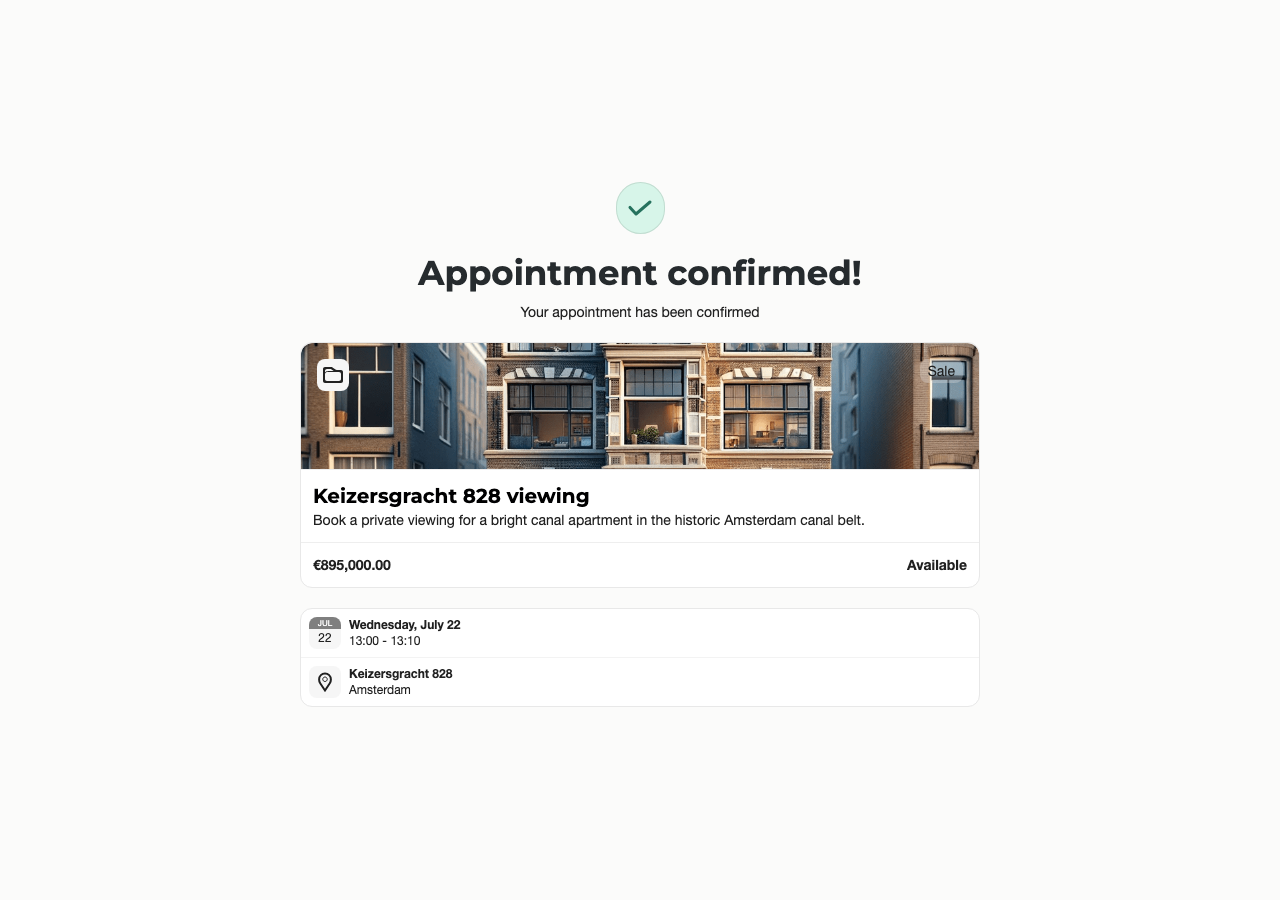
Once the window closes, the page switches to read-only and tells the customer: "Online changes are no longer possible… please contact the office if you cannot make it." Your team can still move or cancel the appointment from the dashboard at any time.
Asking a Question
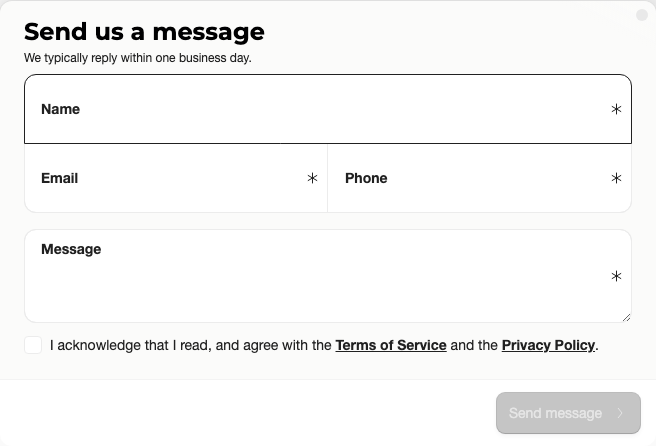
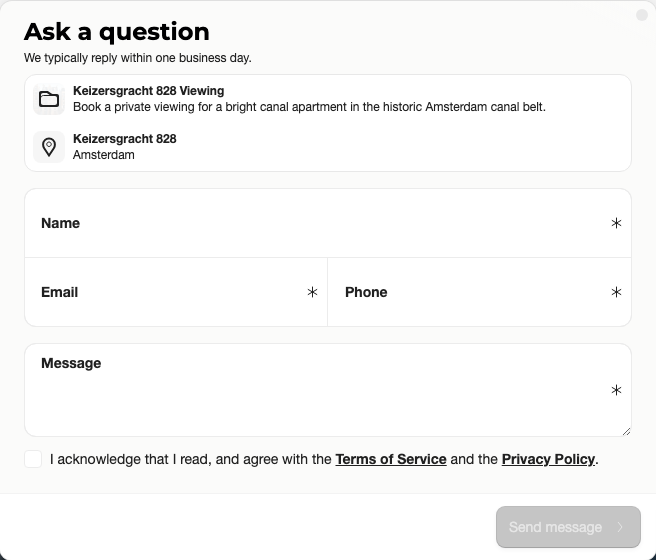
Ask a question is available on the portal home and on each project. The message lands in your Inbox and on the customer's timeline; your reply is emailed to the customer as a "New message" notification.
Workflows, Documents, and Bids
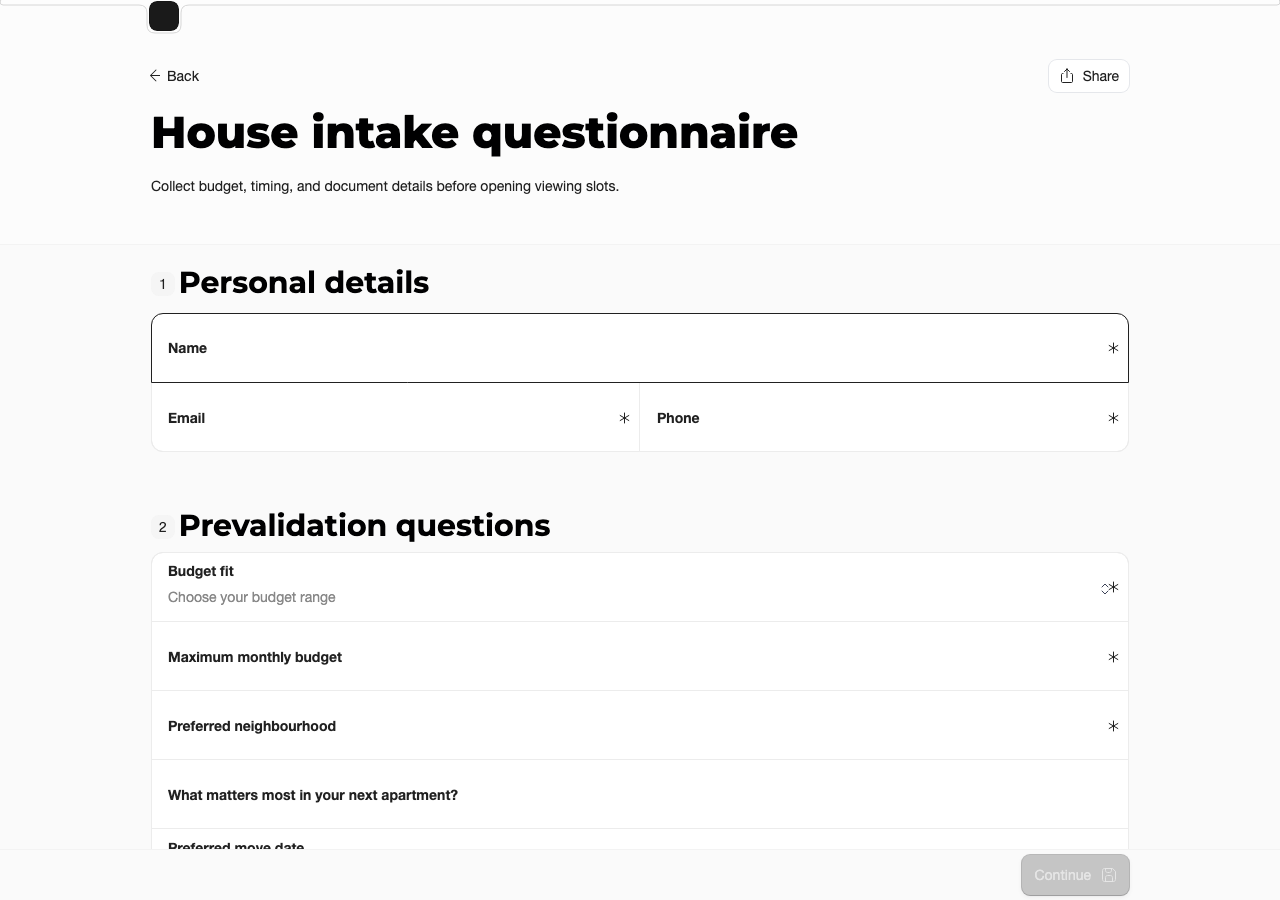
If you publish a workflow in Content, the portal opens the configured questions and stores the answers on the customer timeline.
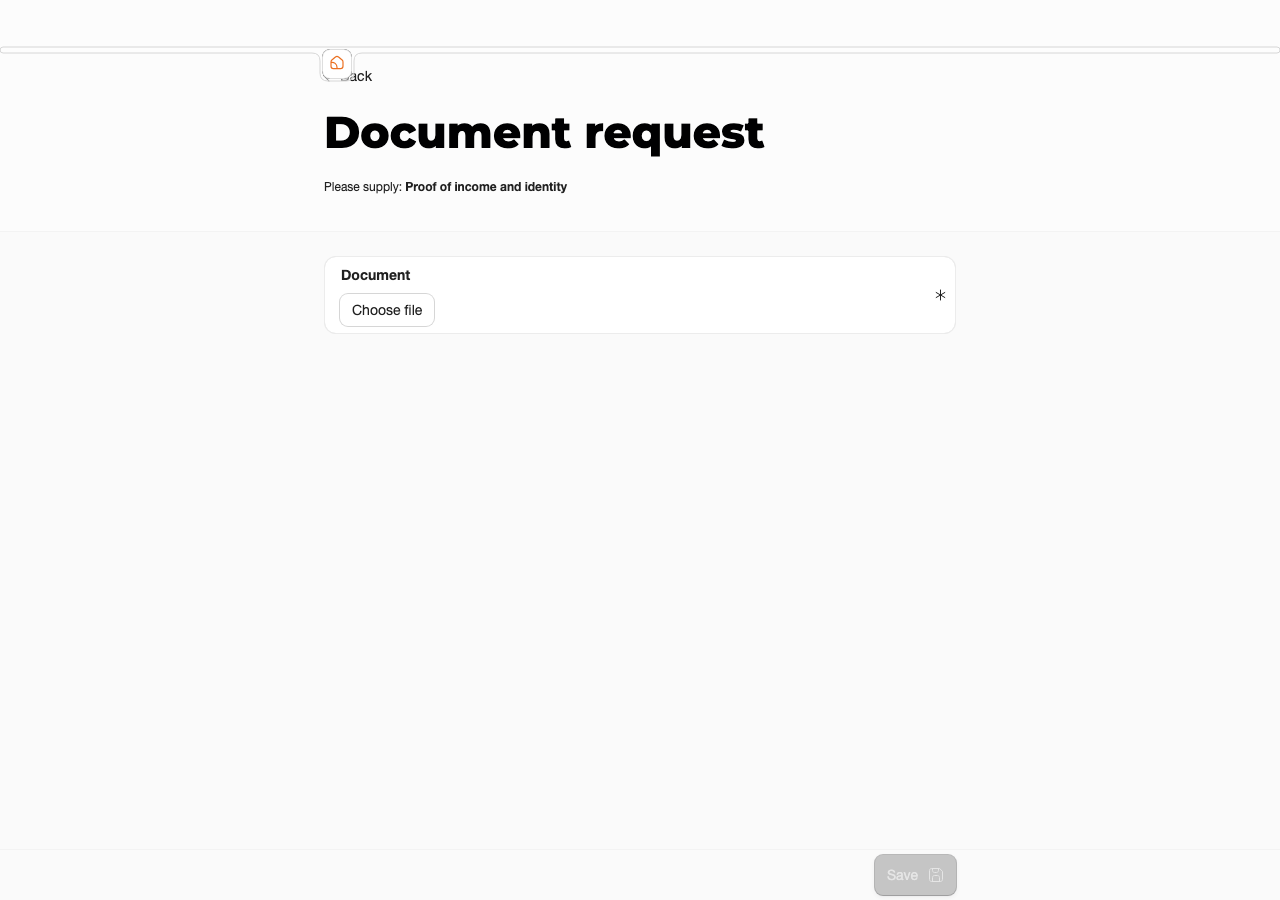
When a document request is sent, the customer sees one clear upload task for the requested file. Document upload can be disabled for general portal use, but a document request still lets the customer upload the requested document.
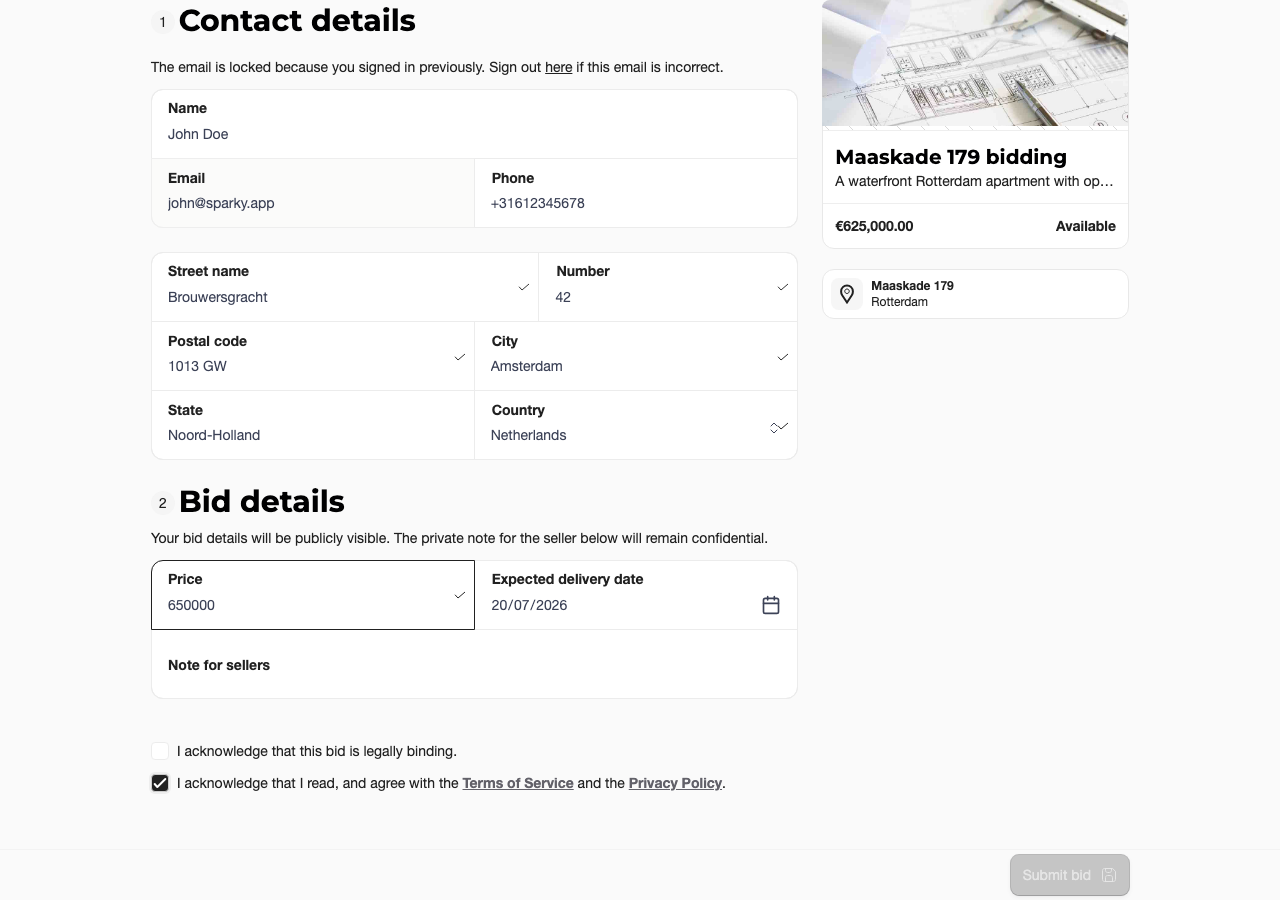
When bidding is enabled for a project, the portal shows the offer form and guides the customer through the bid details.
Signing In — No Passwords
Customers sign in with a magic link: they enter their email on the portal's Login page, receive a "Sign in link" email, and are signed in by clicking it. A customer who just booked is signed in automatically, so their details are prefilled on later actions.
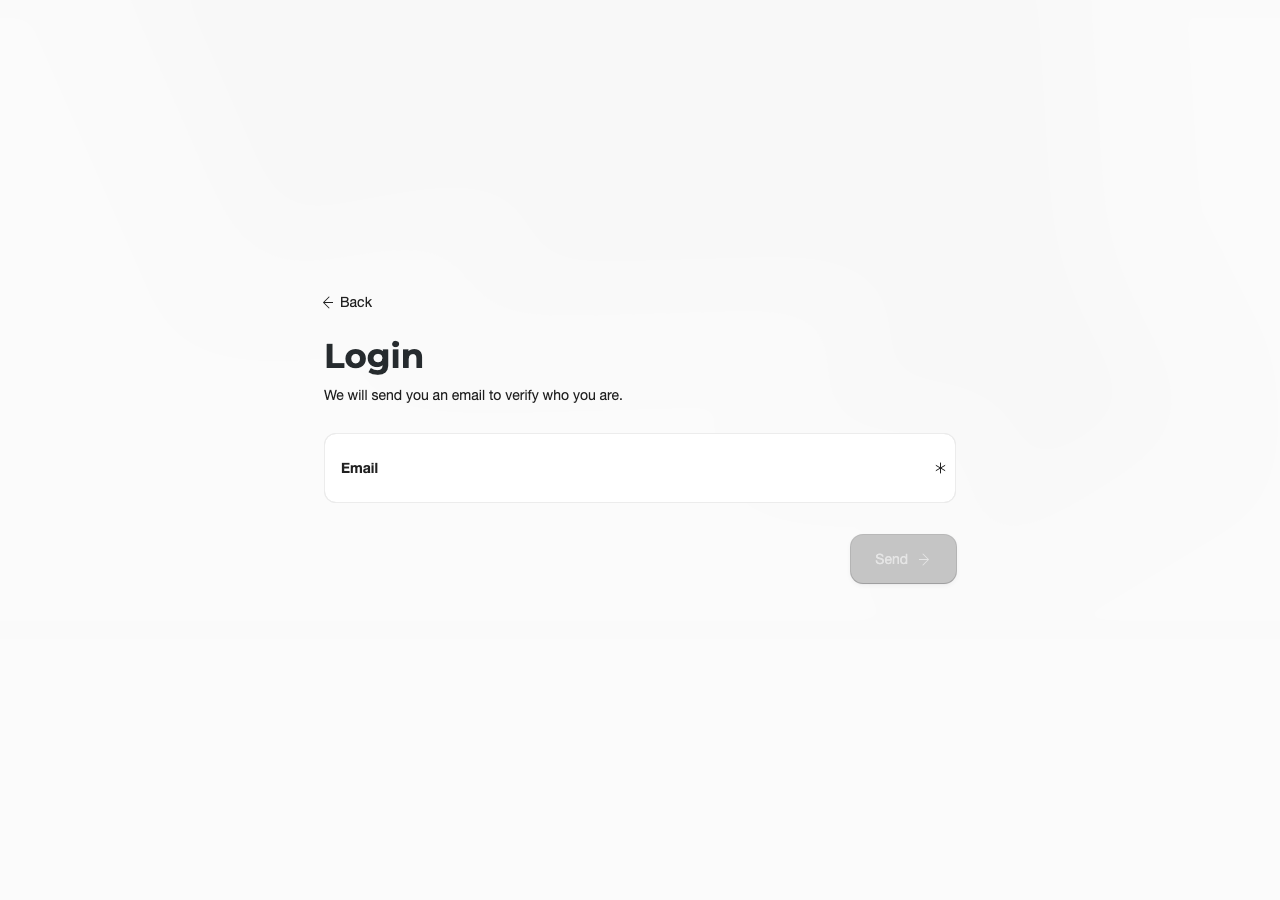
No passwords: the portal emails a sign-in link instead.
Customer Portal
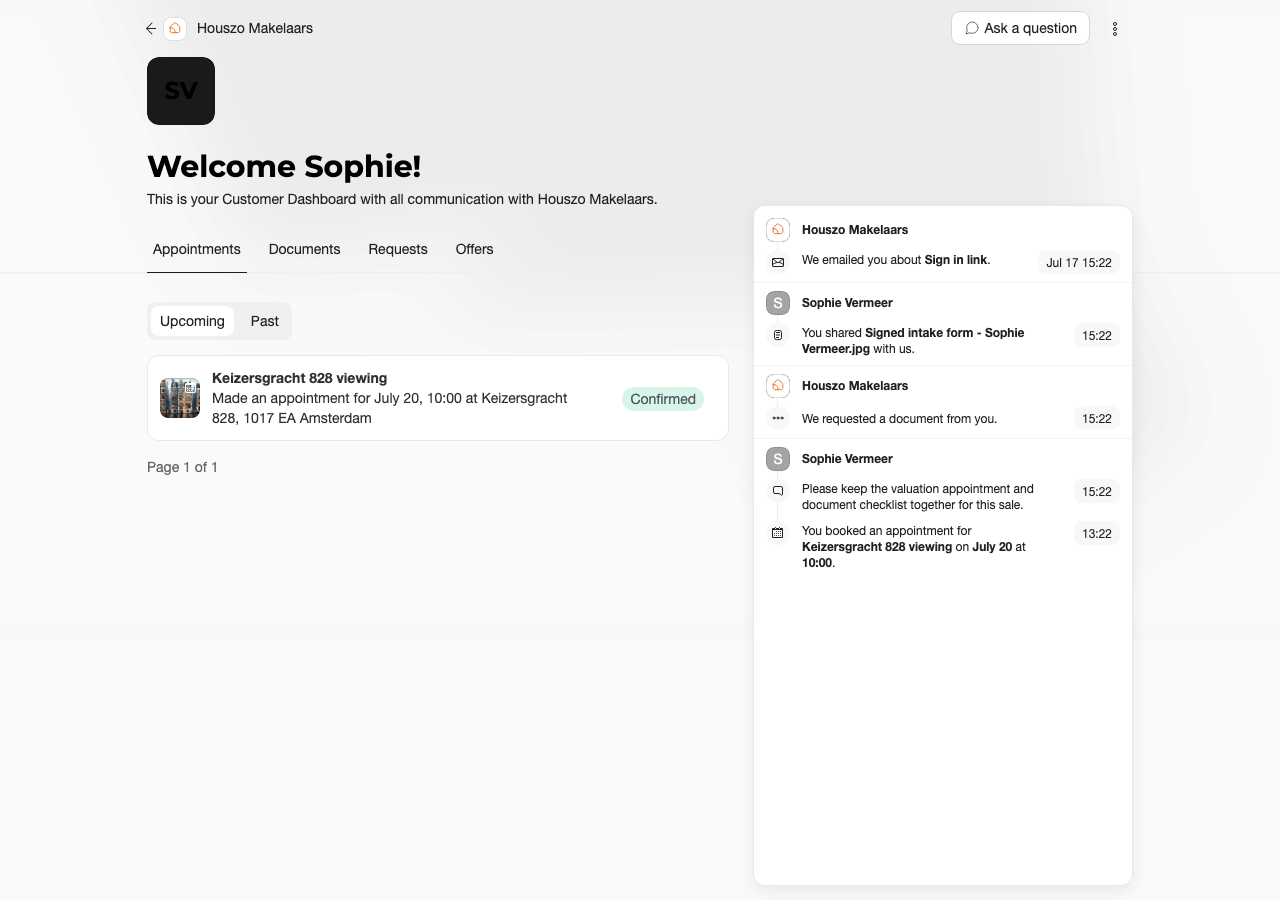
After sign-in, customers land on their Customer Portal: "Welcome Nina! This is your Customer Portal with all communication with Reviewer Realty." — with their own name and your portal title.
 Appointments
Upcoming and past bookings, each opening the change/cancel page while the window allows it.
 Documents
Files you shared and uploads you requested. Free uploads can be off by default; document requests always allow the requested upload.
 Requests
Open requests such as document tasks or waiting-list entries, with their current status.
 Offers
Bids the customer placed, with status and — while bidding allows it — the option to edit.
The Timeline (top menu) shows everything in one thread: messages in both directions, bookings, and "We emailed you about …" entries for system emails like reminders and sign-in links. For the team-side follow-up view, see Inbox and Customer Timeline.
Account and Privacy
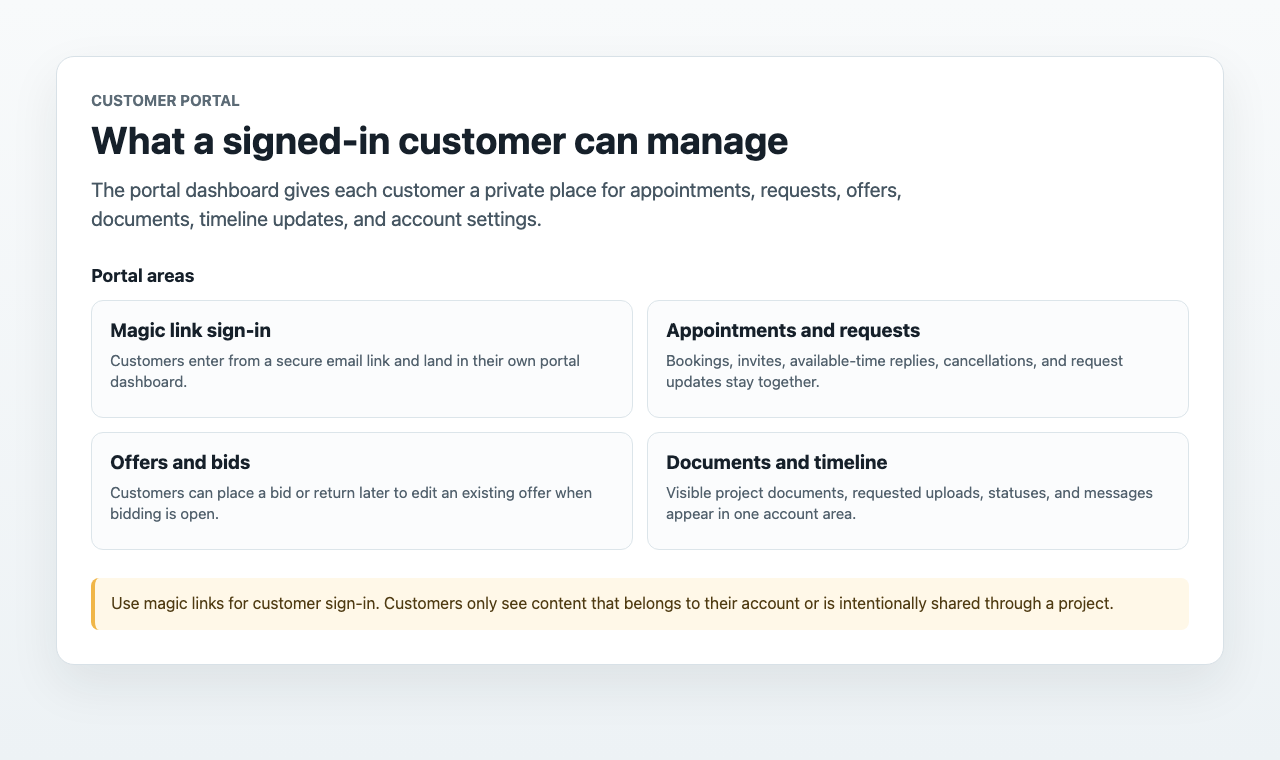
Under Settings, customers manage their Customer Account: they can update personal details and request deletion of their account and personal data. The deletion request reaches your team as a request to process. Logout ends the session and returns to the portal home — nothing personal stays on screen, which matters on shared machines.
A signed-in customer only ever sees their own records. See Customer Portal for the team-side view of the same data.
FAQ
Why does the customer not see a project? The project must be published through Content, shared through a direct link, connected to a website button, or matched by a plugin rule. A project that only exists under Projects is not automatically shown on the portal home.
Why are there no appointment times? The agenda may have no available slots, all slots may already be booked, or the minimum booking notice may hide slots that start too soon for the team to react.
Why can the customer not change an appointment? The online change window may have closed. The customer sees a locked state, while your team can still edit the appointment from the dashboard.
Why is document upload hidden? General document upload follows the portal setting. A document request still shows the requested upload field when the customer opens that request.
Why does the login ask only for email? Customers sign in by magic link. There is no customer password to remember or reset.
Test It Yourself
Open your portal in a private browser window and walk this exact path: find the project → book → check the confirmation email → sign out → sign back in via magic link → check the timeline. If each step feels clear to you, it will be clear to your customers.