
Inbox and Customer Timeline
Use Inbox and the customer timeline to understand what happened and what needs follow-up.

Customer follow-up
Inbox is the team's triage view; the customer timeline is the full story.
Use them together when you need to answer a customer, check a booking, review uploads, or see why a workflow routed someone to a specific next step.
What Lands in Inbox
Inbox collects customer-facing work that may need attention. It can include new messages, appointment bookings, appointment requests, time proposals, document requests, document uploads, bids, workflow answers, orders, and system emails linked to the customer.
 Messages
Questions from portal, plugin, project pages, workflows, and dashboard follow-up actions.
 Appointments
Direct bookings, requests, changed appointments, and proposed times that should be checked.
 Documents
Uploads, document requests, and files that need review, acceptance, rejection, or a reply.
 Workflow answers
The answers a customer gave, plus the ending Sparki matched for that flow.
Use Inbox for the first pass: find what is new, urgent, unanswered, or connected to a request. Open the item when you need the customer, project, appointment, document, bid, or workflow context behind it.
Notifications
The notification button shows mentions for you and open viewing requests. A red dot means that something is unread. Open a notification to mark that item as read, or use Mark as read for the whole list.
Reading a mention does not complete it. Use the Completed checkbox when the follow-up is done, so mentions can also work as a small task list. Opening a viewing request takes you to the interaction where you can choose the next action.
Customer Timeline
The customer timeline shows the same relationship from the customer's point of view: everything your team and the customer did together, in one history.
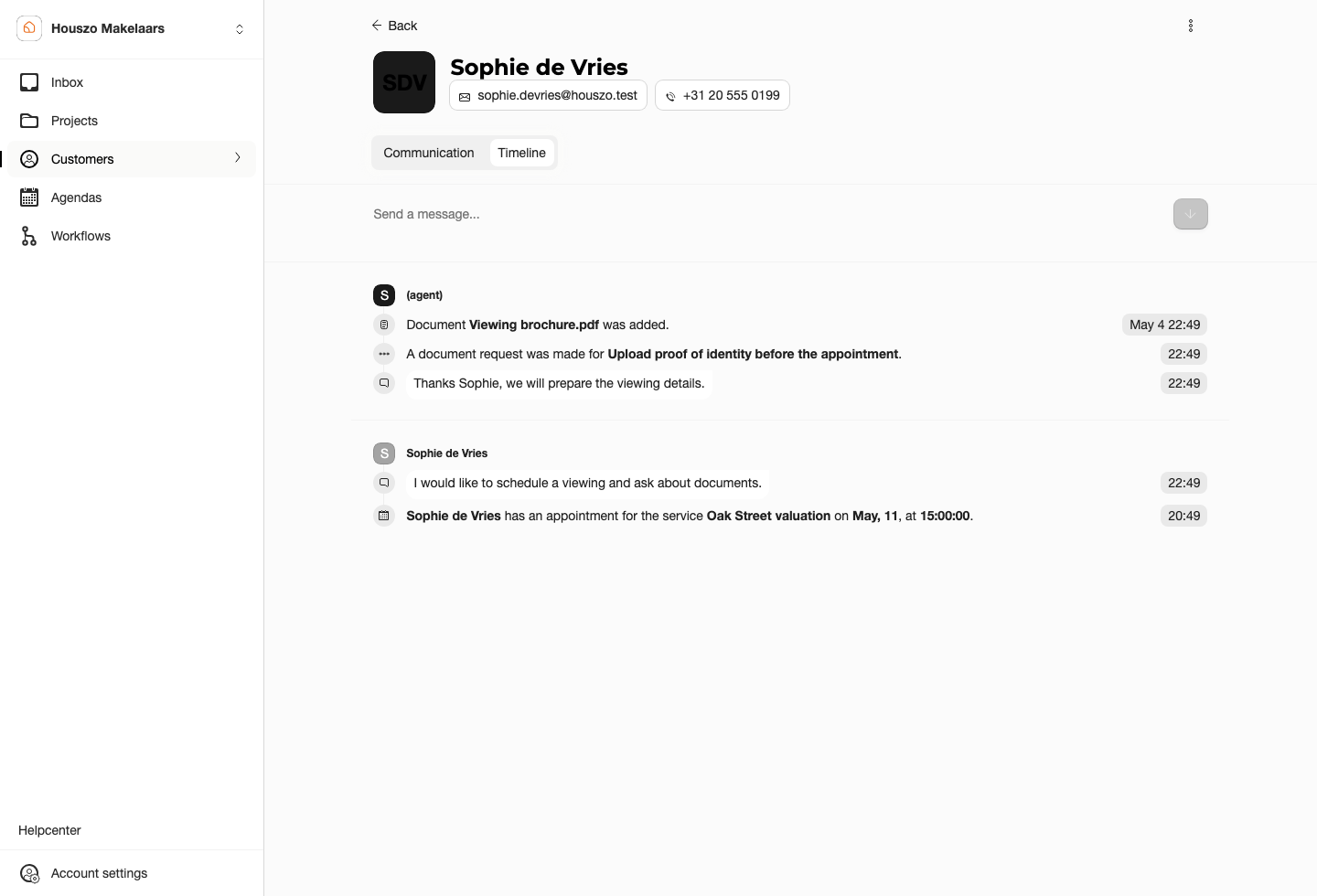
Use the timeline when you need to answer "what happened before this?". It is especially useful before replying to a message, accepting a document, moving an appointment, or deciding whether a request is complete.
Follow-up Workflow
- Start in Inbox and filter to the items that need attention.
- Open the item and check its type, project, customer, and status.
- Open the customer timeline when the item depends on earlier messages, uploads, bids, appointments, or workflow answers.
- Reply, accept, reject, reschedule, or complete the next action from the dashboard page that owns that action.
- Leave the timeline as the record of what was sent, requested, received, and decided.
Customer View
Customers see their own dashboard after signing in with a magic link. They can review appointments, documents, requests, offers, and the timeline that belongs to their account.
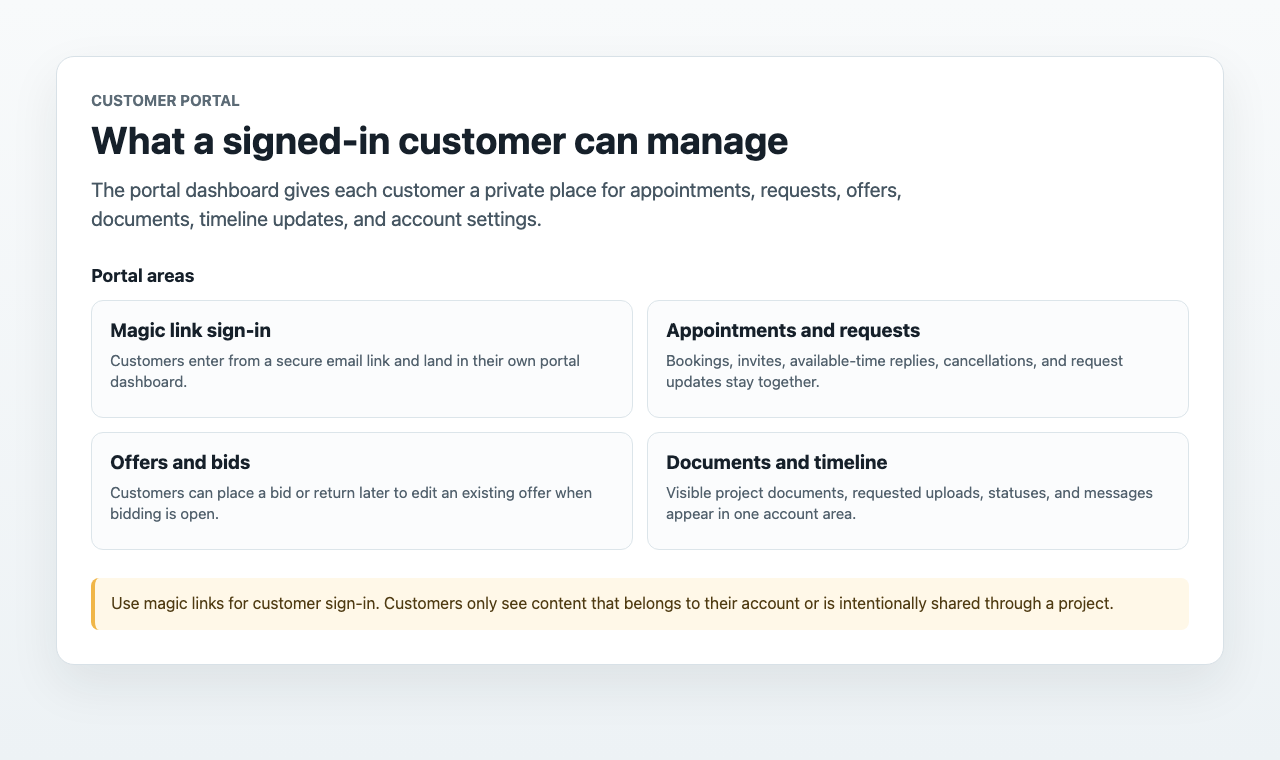
A customer can only see their own records. The dashboard team sees the broader Inbox and customer details view for the portal.
Good Checks
Before considering a customer issue resolved, confirm that the timeline shows the latest action, the status is correct, and any email notification that should have been sent is present. If the item came from a workflow, also open the related Answer interaction so you can see the submitted answers and matched ending.
See Portal for Customers for the customer-facing sign-in and dashboard flow, and Interactions for the individual interaction types.