
Cases
Assign tasks, review submissions and guide your customer through each stage.
A case brings one customer's work together. Its process defines the stages and tasks. An admin or a member with Manage cases permission can manage it.
Start a case
- Open Cases → New and select a published, active process.
- Choose the customer as Owner. Select a Project if a task needs a property, booking or appointment request.
- Keep the suggested name or enable Make a custom name, then start the case.
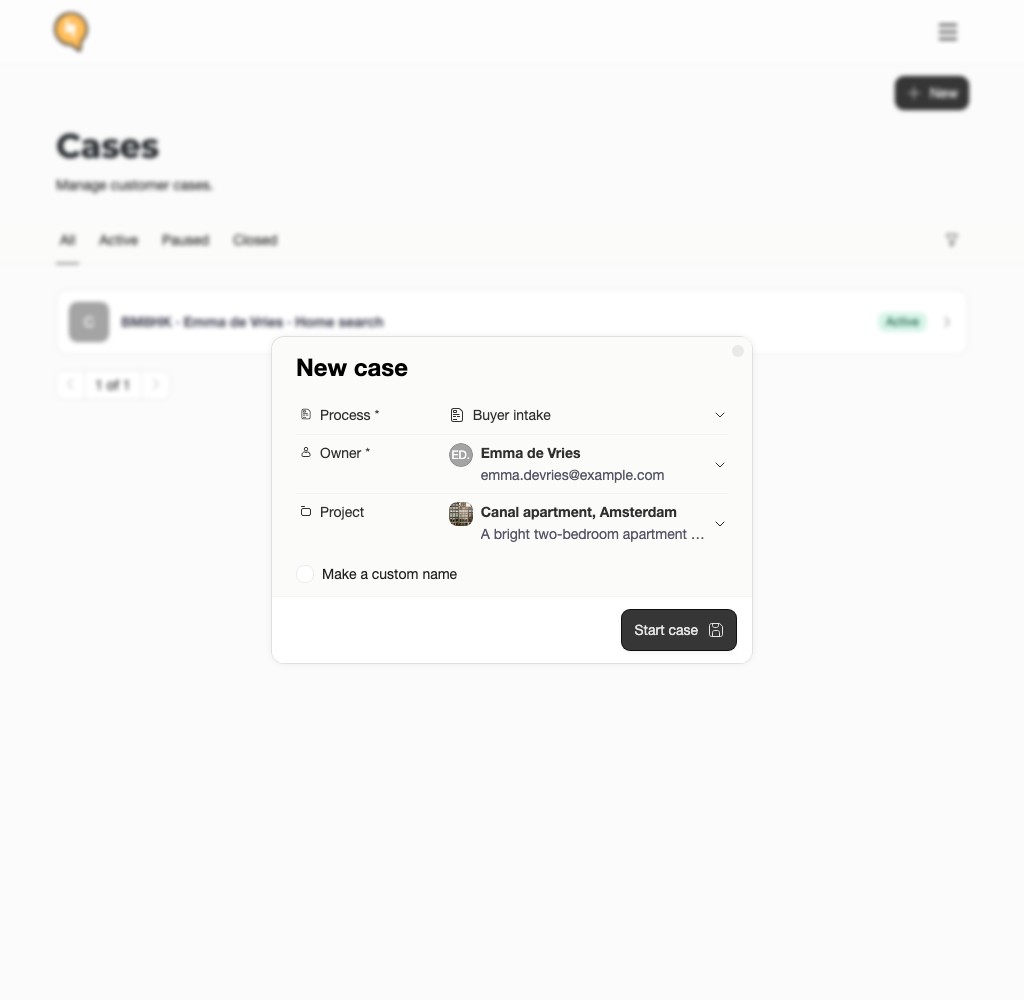
The owner is the main customer. Assign the team member who handles the work separately. You can add more customers and team members after creation.
A custom name is internal and must be unique within your portal. Customers see the process name and the case's permanent five-character reference. Use this reference when discussing the case. Edit beside the title changes the internal name without changing the reference.
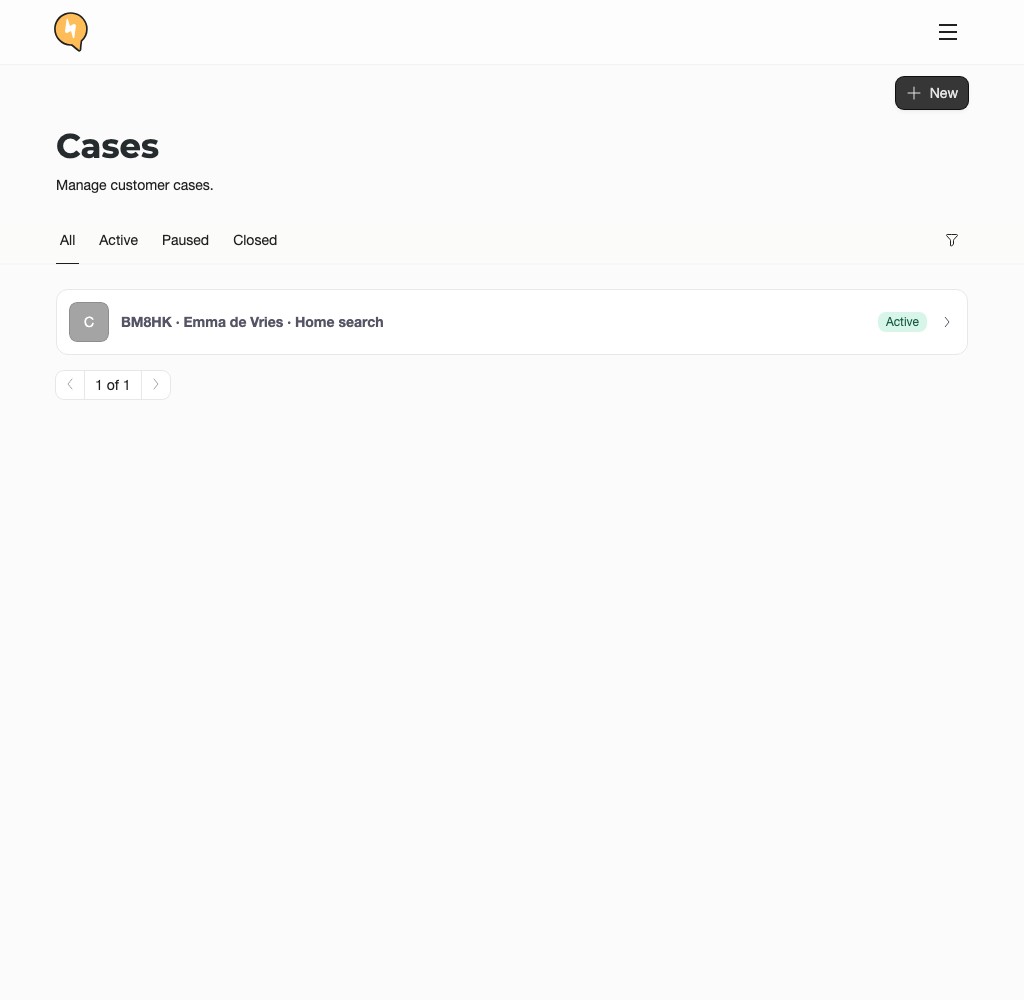
Assign the next action
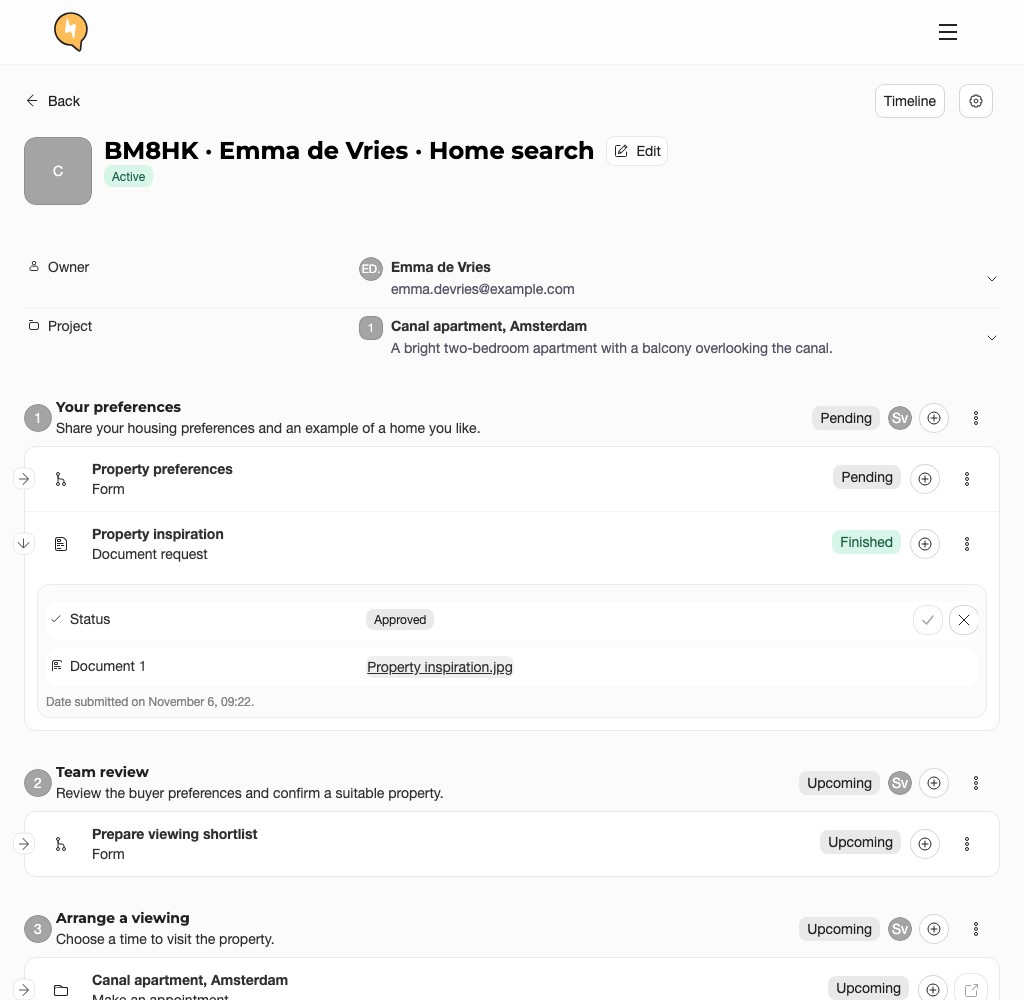
Use Assign beside a stage or task to select the people responsible. A task assignment takes priority over its stage assignment. Assign a team member to any work that needs human review.
Each customer submits their own answers and files. Customers assigned to the same case cannot see each other's submissions. Changing the owner removes the former owner's assignments, but keeps the original author of earlier submissions.
Review answers and documents
Open a task to read its submissions, files and review decisions. If the task requires all assignees, review each person's submission.
Choose Approve when the submission is complete. Otherwise, use the available correction or rejection action and explain what needs to change. An already-selected decision is disabled.
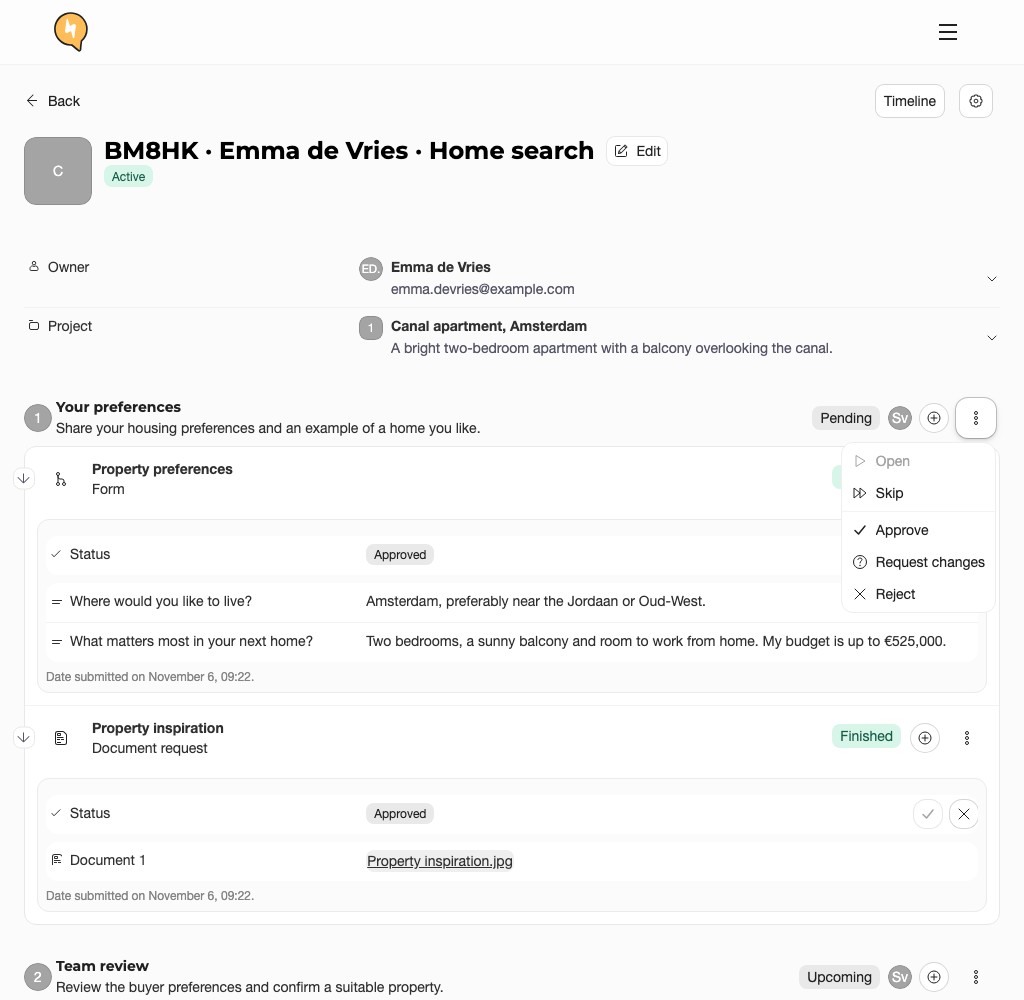
Task approval and stage approval are separate. If tasks are Finished but the stage is Pending, open the stage's three-dot menu. Choose Approve to complete its review, or Request changes and select the work to correct.
| Status | Meaning |
|---|---|
| Open | Ready to start. |
| In progress | Work has started. |
| Pending | Waiting for review. |
| Finished | The configured work is complete. Read the review decision separately. |
| Upcoming | Not available yet. |
The process determines when the next stage opens. Opening a booking page does not complete a task; the customer must finish the booking or send the request.
Follow up and finish
Submitted forms and documents appear in the inbox and customer timeline with links to their case and task. Use Message to contact the customer and Note for internal notes.
From the case's settings menu:
- Pause stops work temporarily; Resume continues a paused case.
- Close records the outcome and reason when the work is complete. Finishing the last stage does not close the case automatically.
- Download exports the case dossier for authorized staff.
To repeat completed work in an active case, use Reopen on the relevant stage. This is separate from closing the case.
When a newer process version is available, Update case applies it to this case. Previous evidence and finished stages are retained; publishing a process does not update every running case automatically.
Share Guide your customer with your customer.