
Guide your customer
Find your next task, send information and follow your agency's review.
Your case brings the steps for your enquiry together in your agency's customer portal. Your agency sets the tasks and decides when each stage becomes available.
Find your next task
- Sign in using your agency's access email and open Cases on your customer dashboard.
- Open a stage using its arrow, then select an available task.
- Read the stage explanation and task instructions before starting.
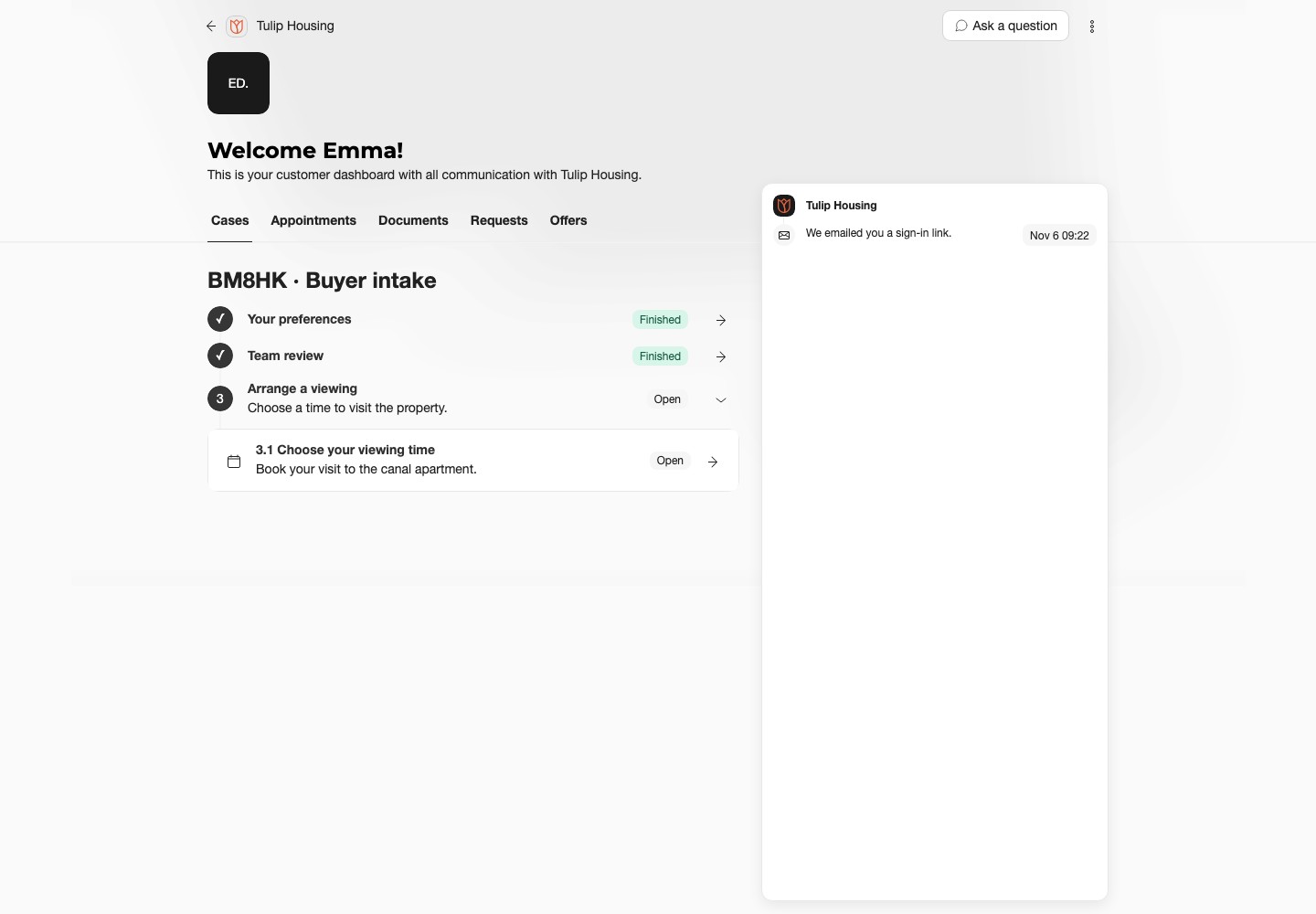
The process name and five-character case reference identify your case. Include the reference when contacting your agency.
| Status | What to do |
|---|---|
| Open | Open the task and follow its instructions. |
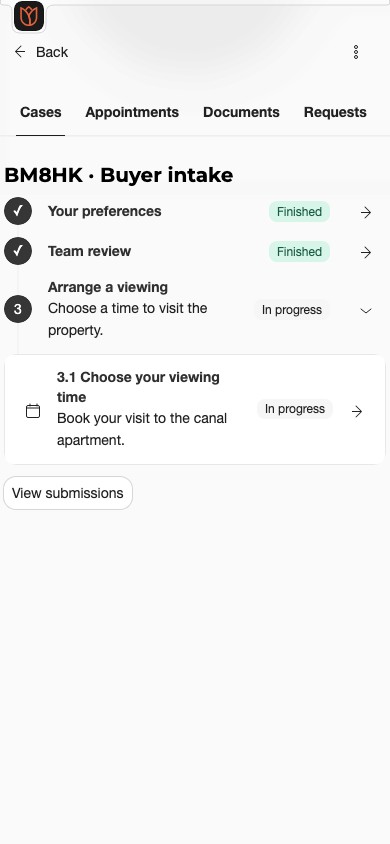
| In progress | Return to the task to continue. |
| Pending | Wait for the agency's review and follow its waiting instructions. |
| Finished | This step is complete. Read any review decision separately. |
| Upcoming | Complete the current work or wait for the agency to open this step. |
On a phone, expand a stage to show its tasks. More than one stage may be available at the same time.
Send answers or documents
For a form, answer the required questions and use its submission action when ready. A saved draft lets you continue later. It is not submitted for review.
For documents, check the accepted types, maximum size and file-count limit beside the upload control. Add the requested files, wait for the uploads to finish and choose Submit. Selecting a file alone does not submit the task.
If you need to book an appointment or send a request, complete that action and wait for confirmation. Opening its page alone does not finish the task.
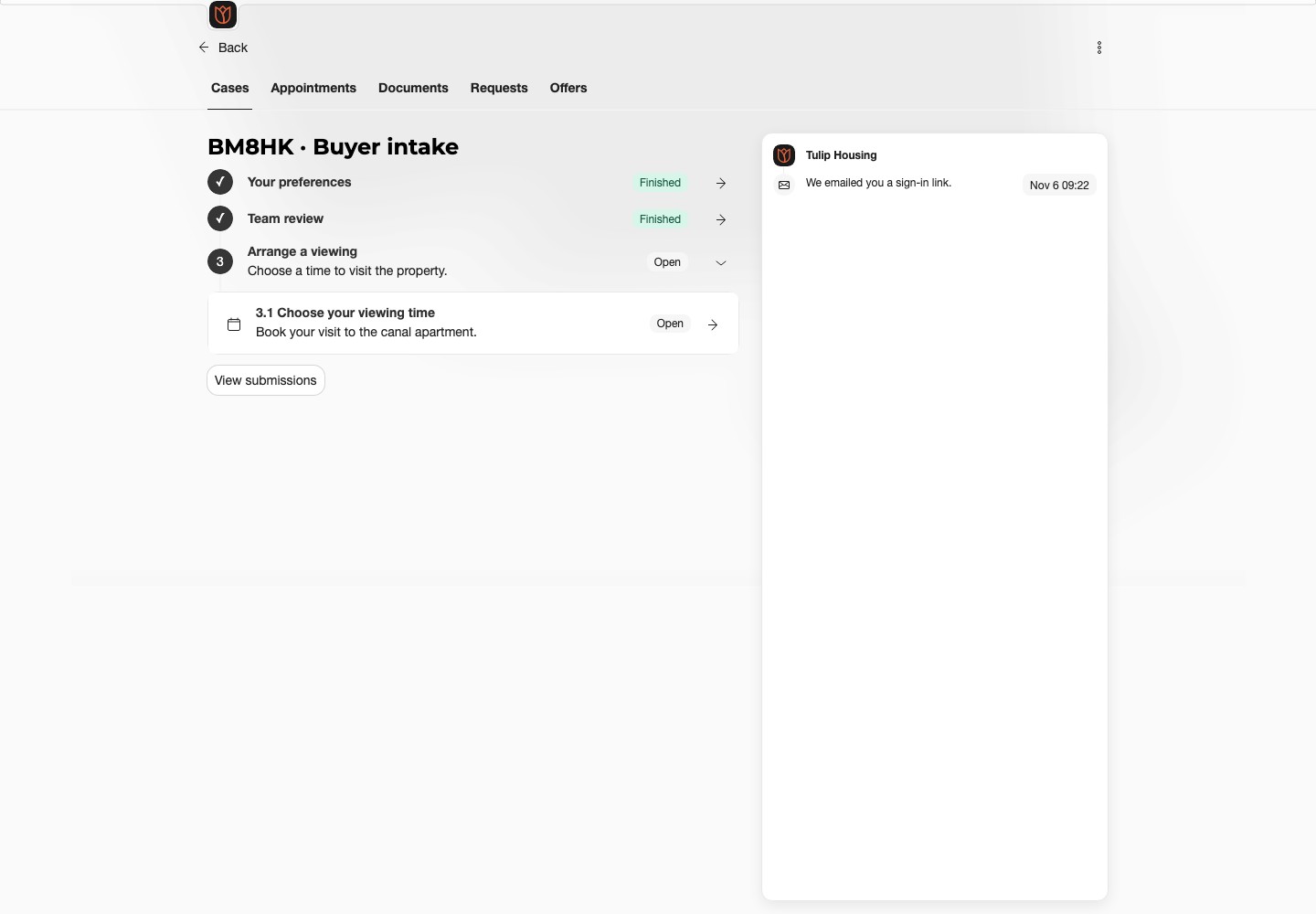
Use the case breadcrumb or Back to return. If the wrong property appears, contact the agency before continuing.
Follow the review
After submission, the task may show Pending while the agency reviews it. Follow the waiting instructions without sending the same information again.
If the agency requests changes, read the reason, reopen the available task and submit the correction. An email may take you directly to the task after sign-in.
View previous submissions
Open the case name and choose View submissions. Select a dated entry to see its status and the answers or files available to you.
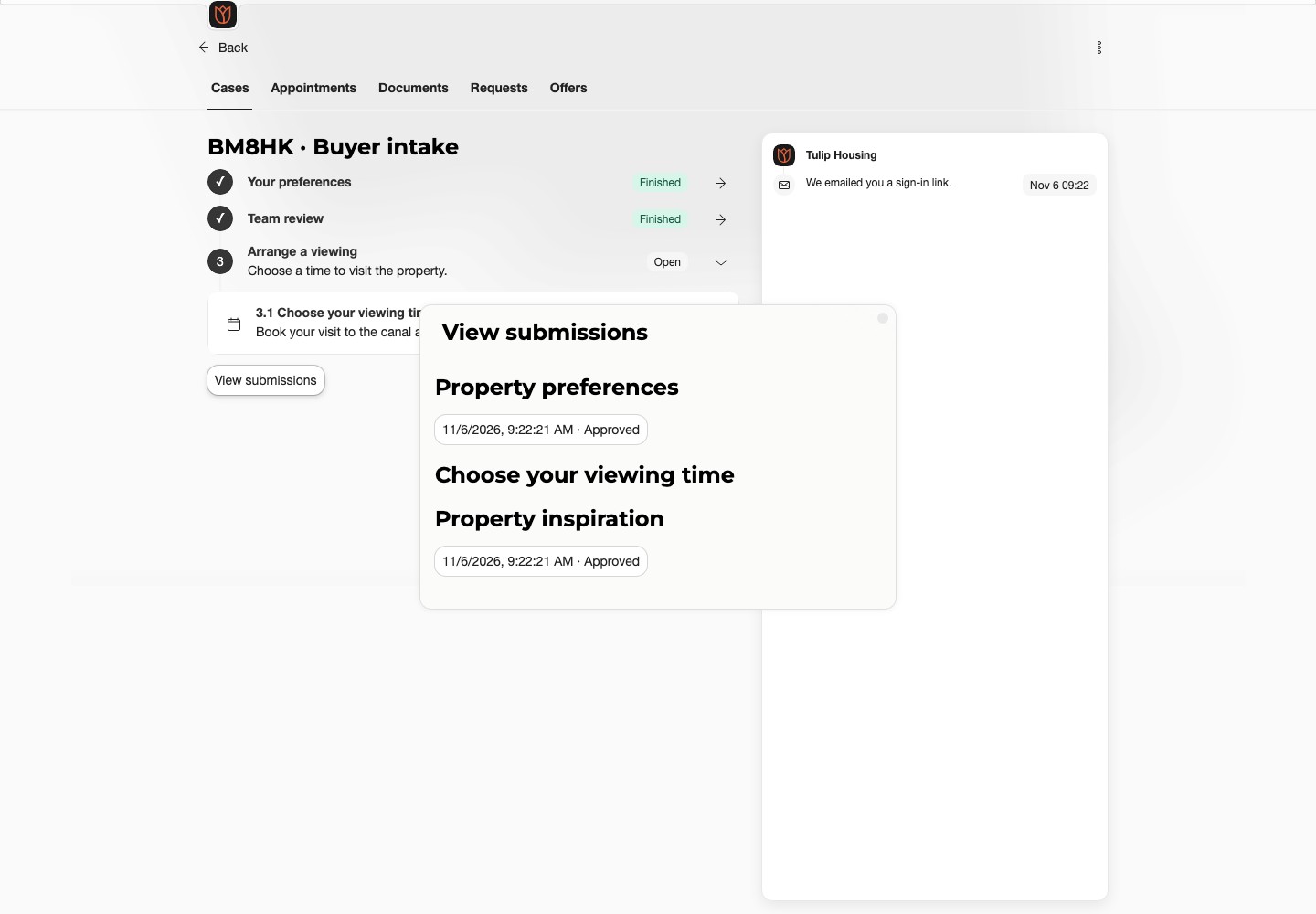
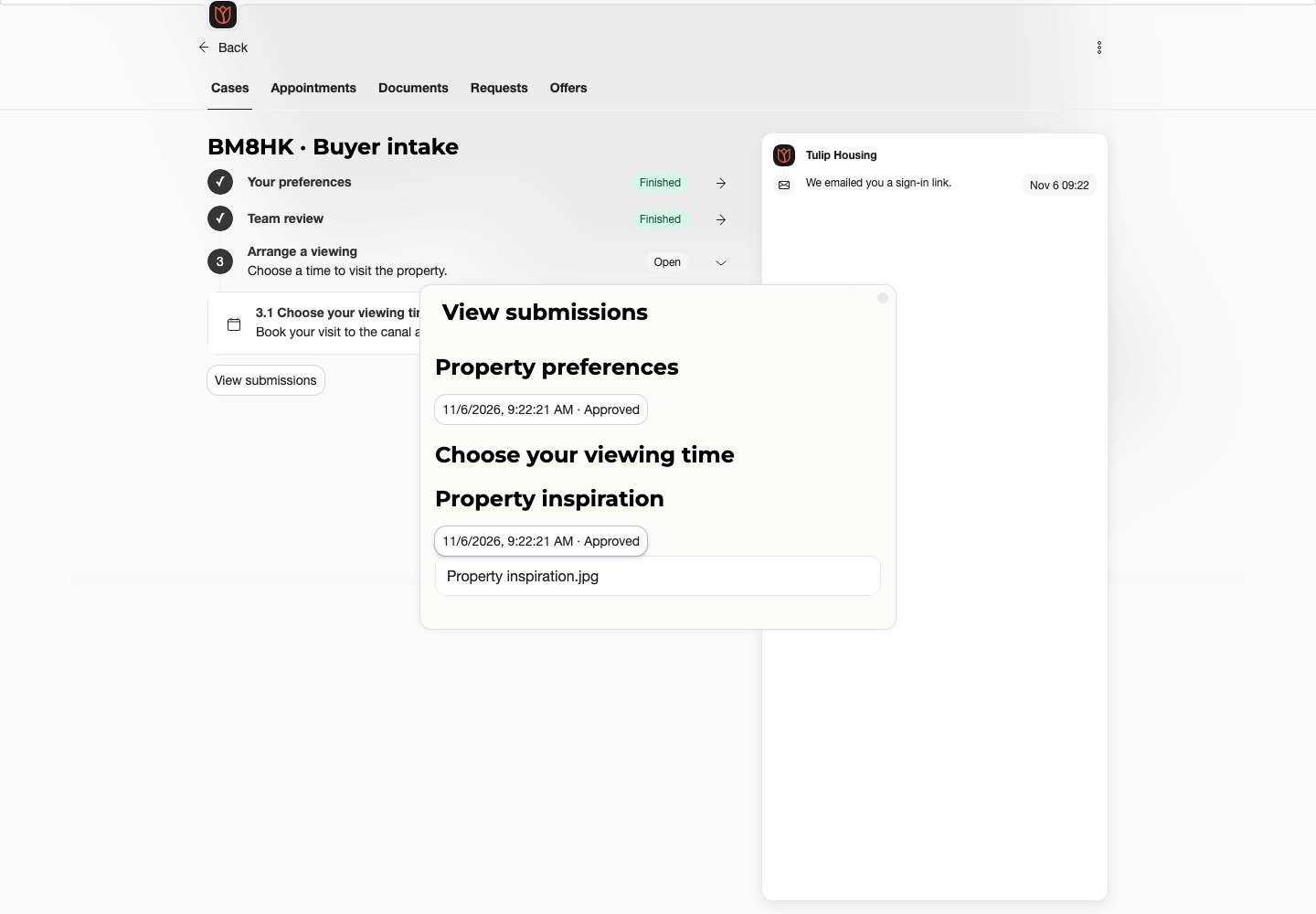
Other customers in the same case have their own submissions. You cannot see their answers or files.
Ask for help
Use Ask a question on your customer dashboard or contact the agency. Include the case reference and task name. If no task is available, or your case is paused or closed, ask the agency what happens next.