
Processes
Build reusable stages for customer tasks and team reviews.
A process defines the work. A case follows that process for a customer. A form supplies the questions inside a task. An admin or a member with Edit forms permission can edit processes when the feature is available.
Create the process
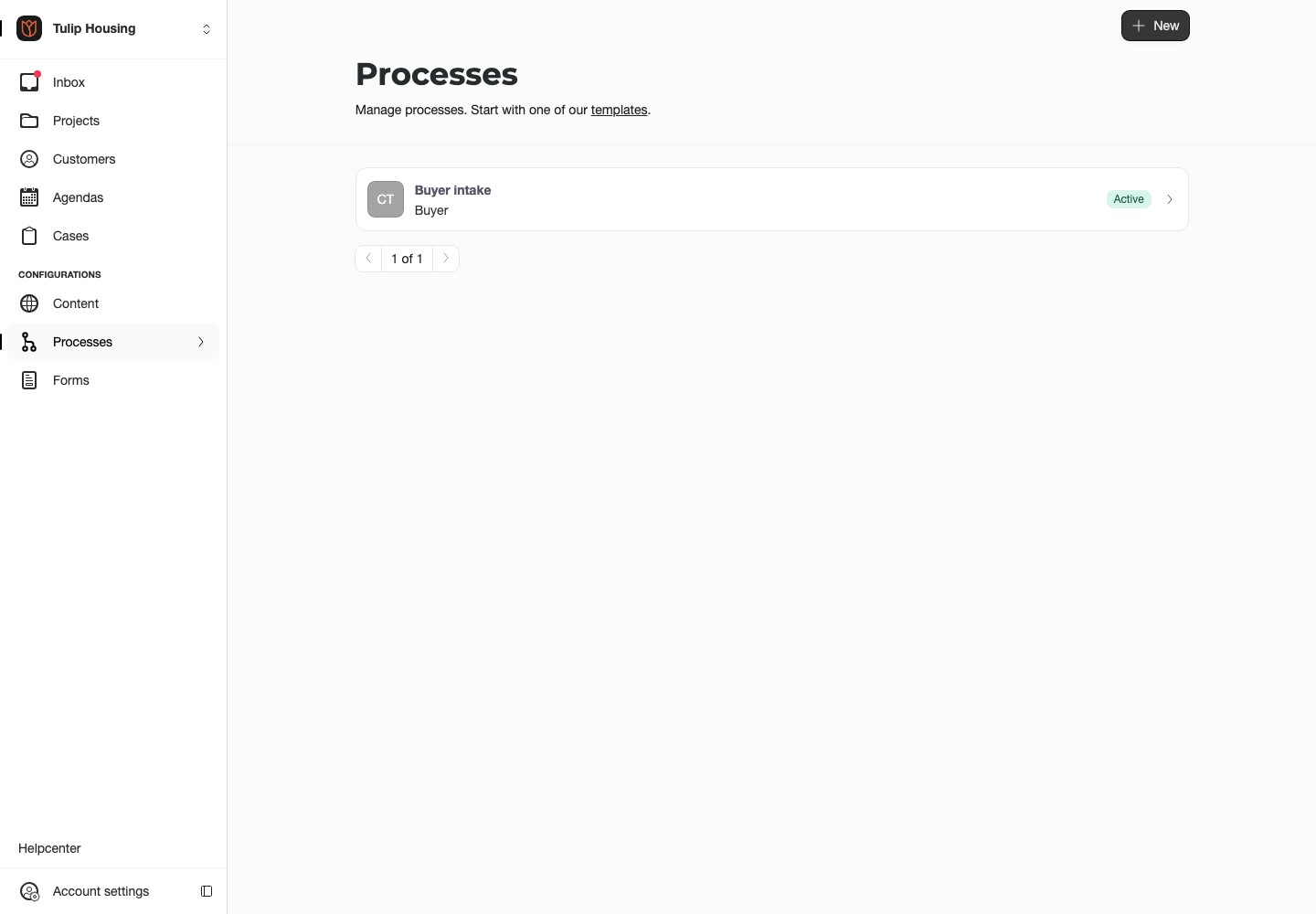
Open Processes and choose New, or start from templates. Enter a name customers will recognize and choose General, Buyer or Tenant.
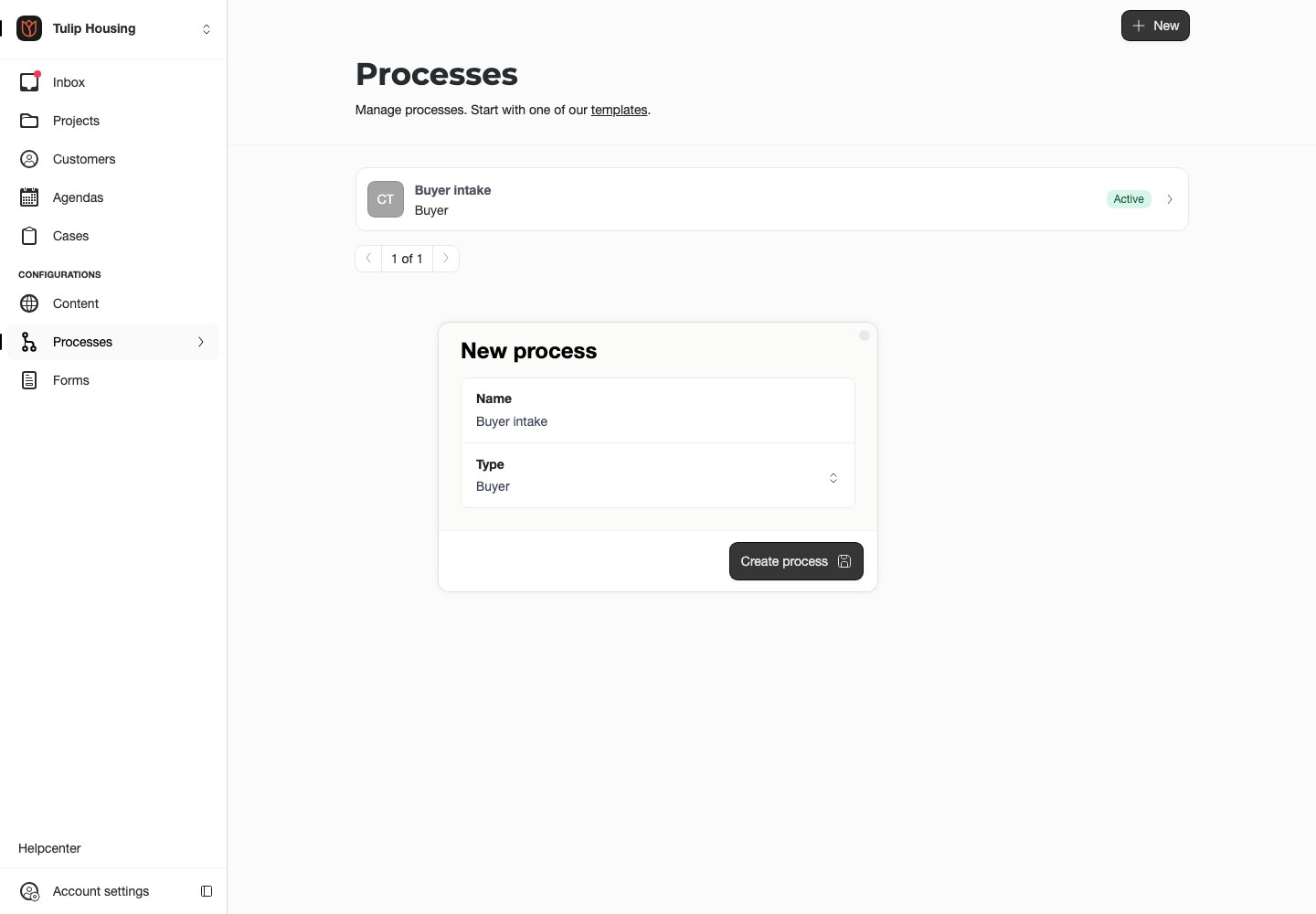
For a buyer intake, you might use Your preferences, Team review and Arrange a viewing as the stages. Replace placeholder names before publishing.
Add stages and tasks
Choose Add stage, then Add task beneath it. Use the arrow controls to change their order. The preview shows the customer's view alongside the editor.
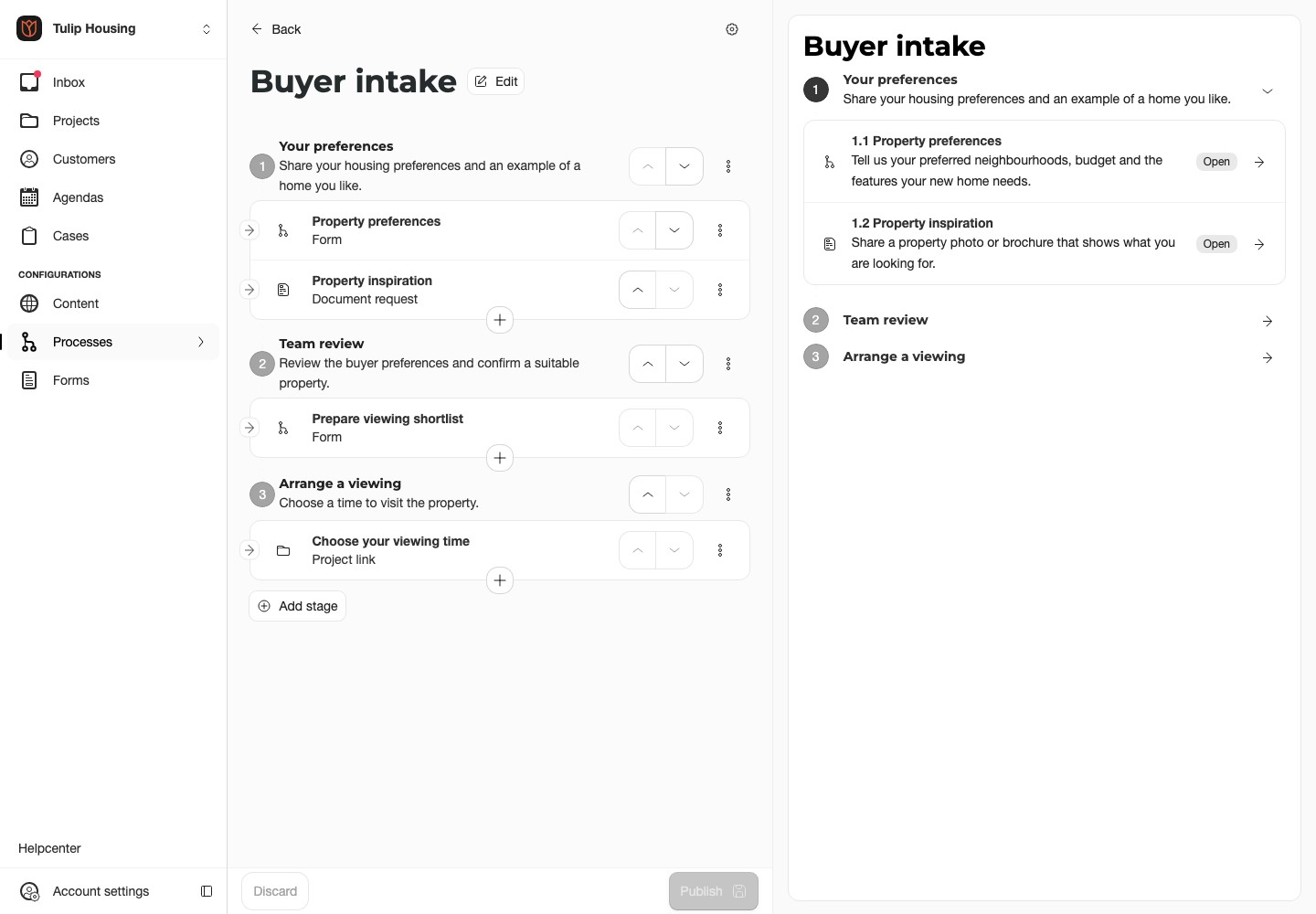
| Task | What to set up |
|---|---|
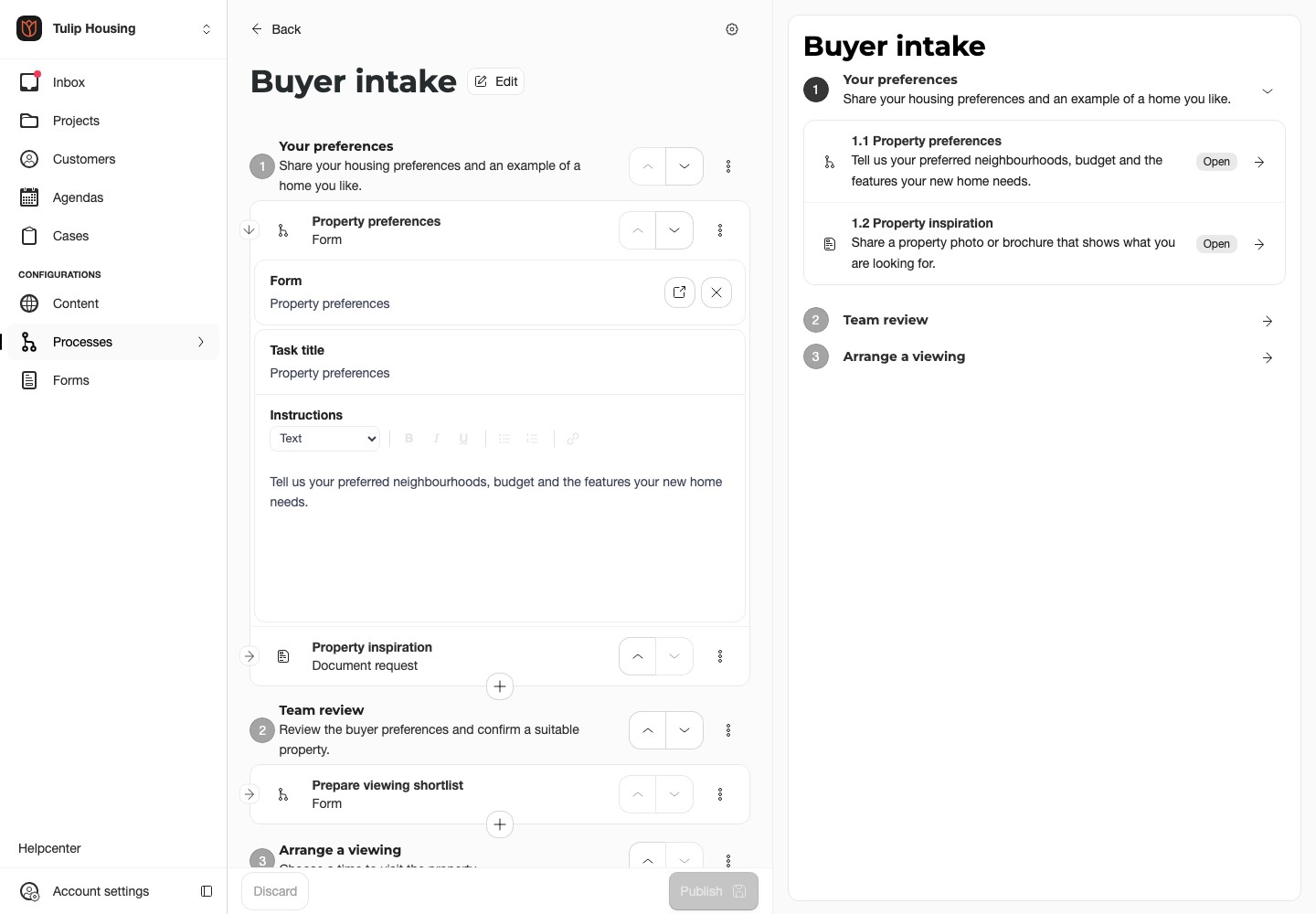
| Form | Select a form. Edit its questions and conditions in Forms. |
| Document request | Name the documents and set the accepted files and upload limits. |
| Project link | Choose the booking or request action. Select its project when starting the case. |
Give each task a clear title and Instructions. For example: "Tell us your preferred area and moving date. Our team will review your answers before arranging a viewing."
Starter templates need your agency's own questions and wording. For the tenant template, configure the affordability criteria in its intake form before activating the process.
Set responsibility and completion
Open a task's three-dot menu → Settings.
- Assigned to chooses Customer or User. User means a team member.
- Required submissions chooses One assignee or All assignees.
- Required makes the task necessary for stage completion.
- Allow repeated submissions lets someone submit again; it does not replace All assignees.
- Hide completed contents controls the completed display, not access permissions.
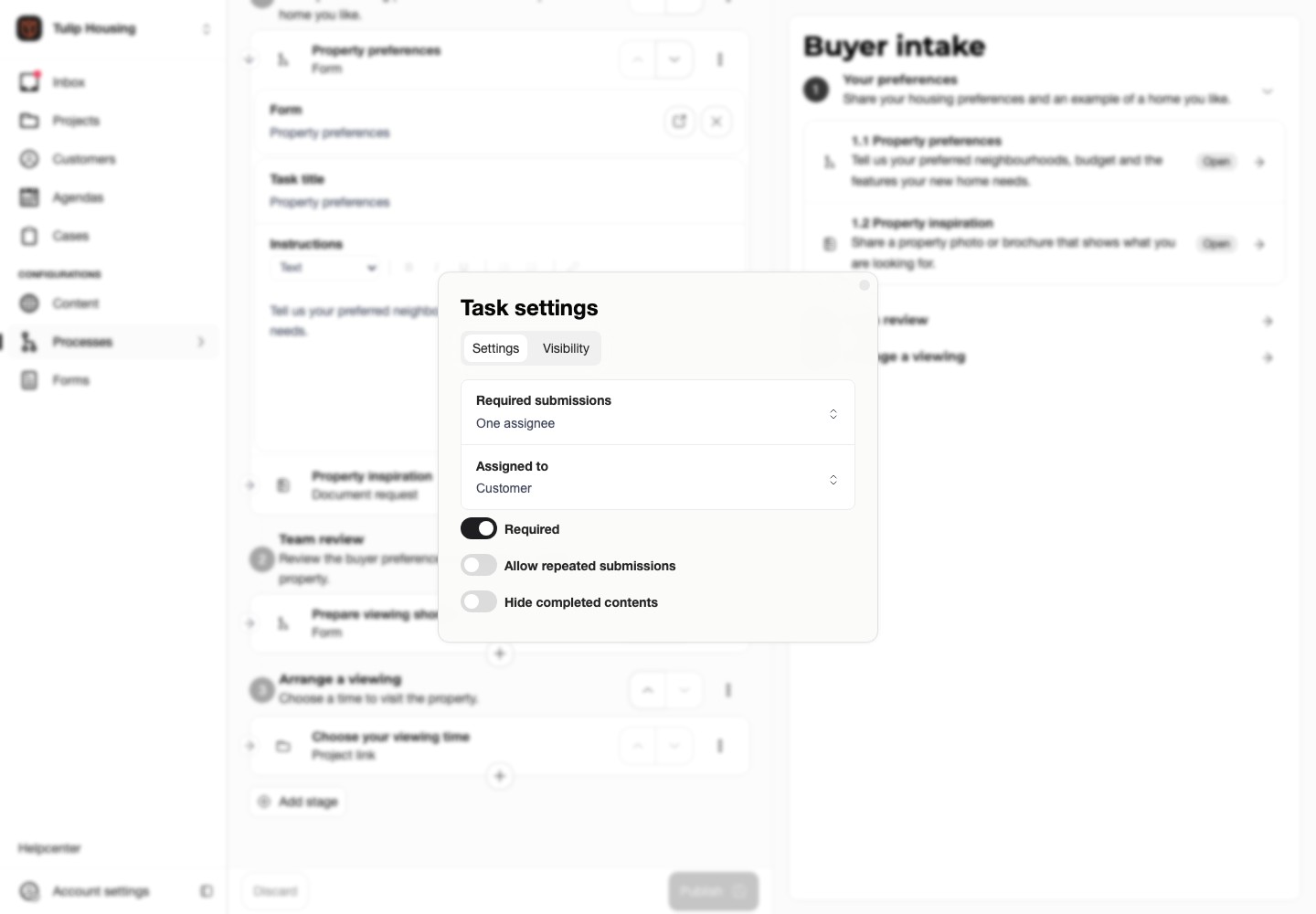
Assign the actual people in the running case, including a team member for each human review.
Explain when a stage opens
Open the stage's three-dot menu → Settings. Use Instructions for active work and Customer waiting instructions when the customer cannot act.
For example: "We are reviewing your answers. You do not need to do anything now. We will contact you if anything needs correcting."
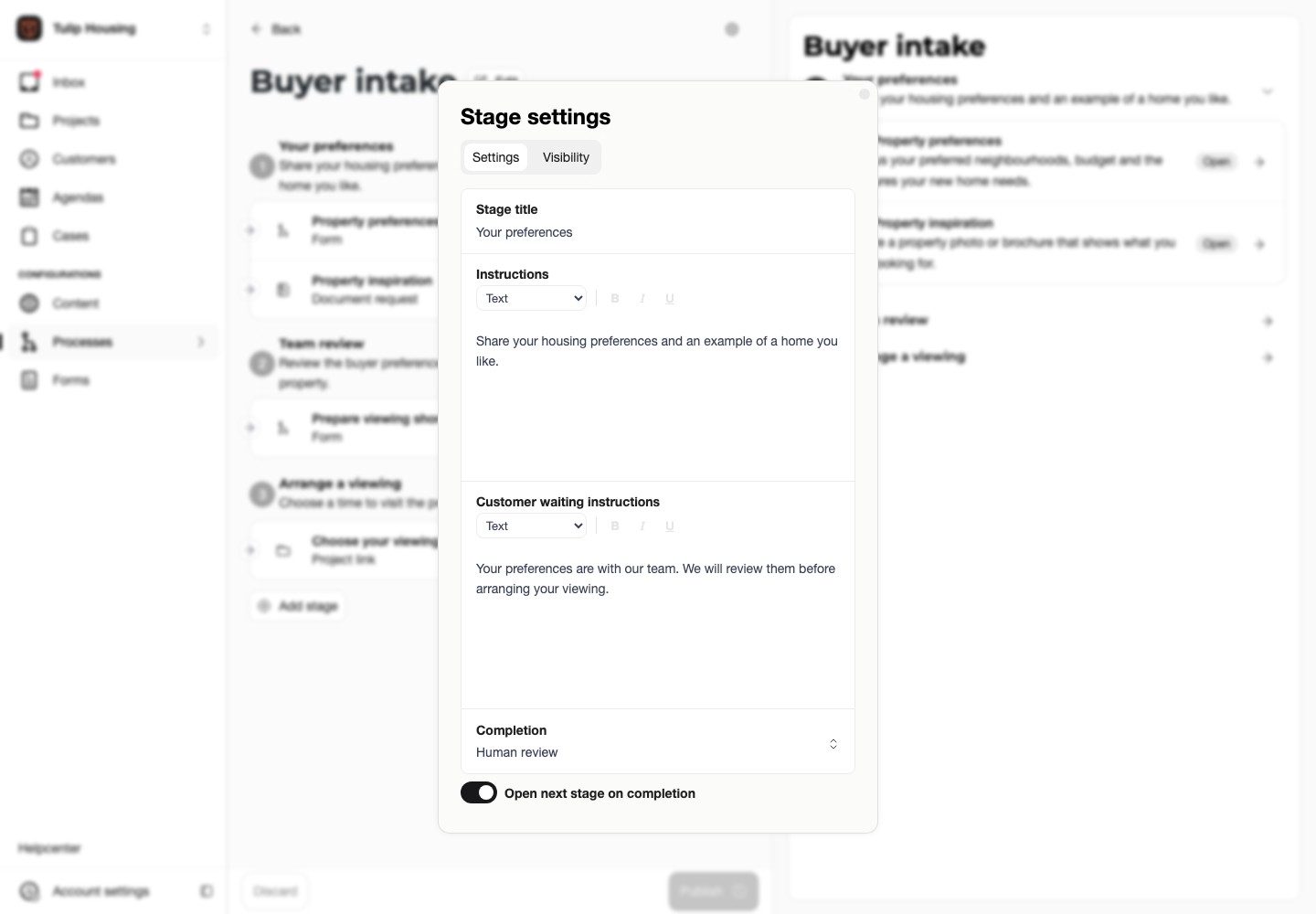
Choose Human review for a team decision or Automatic when task completion is enough. Open next stage on completion controls progression.
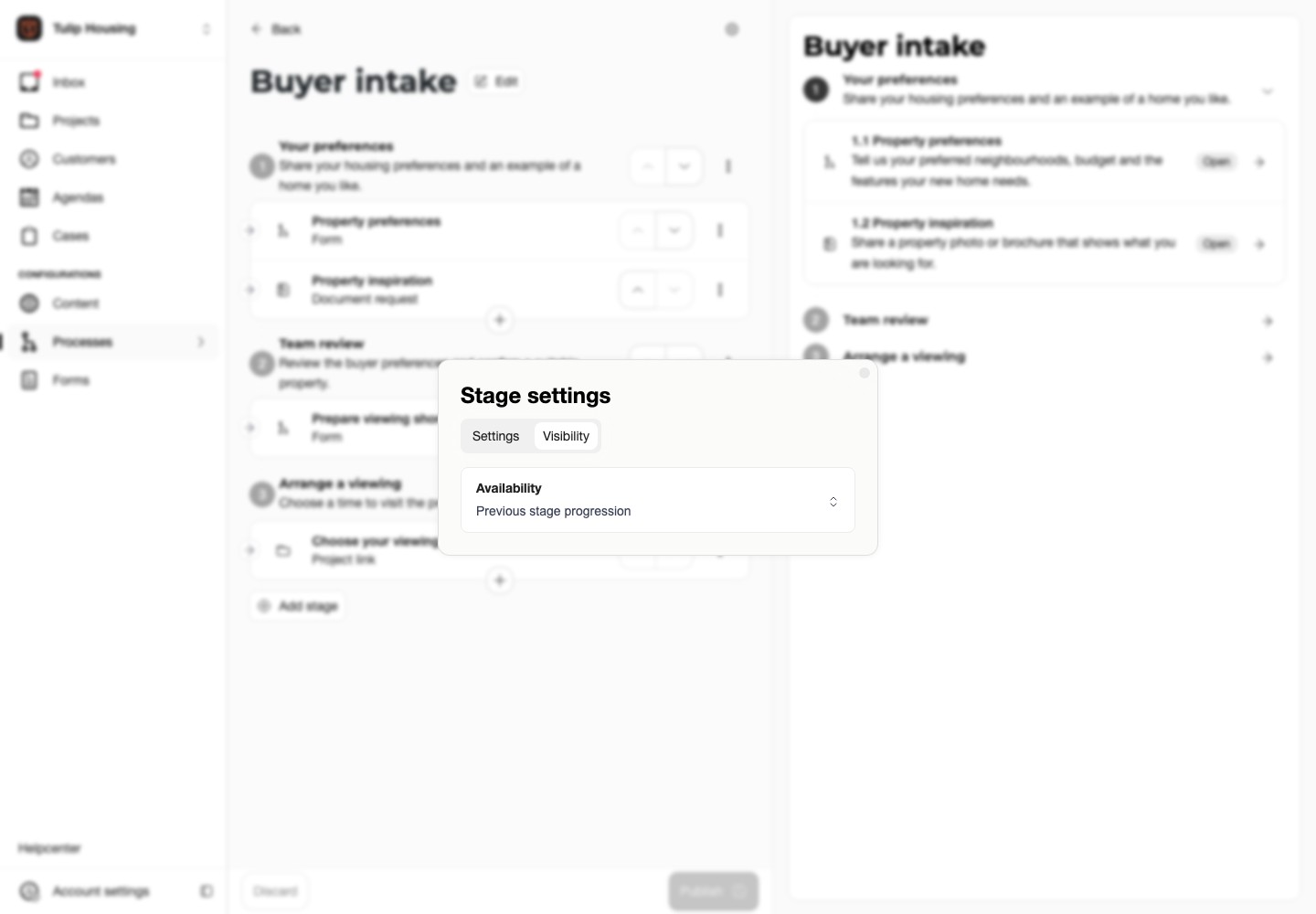
In Visibility, choose whether the stage opens immediately or follows the previous stage's progress, completion or acceptance. Choose acceptance when a positive review must unlock the next step.
Set reminders and publish
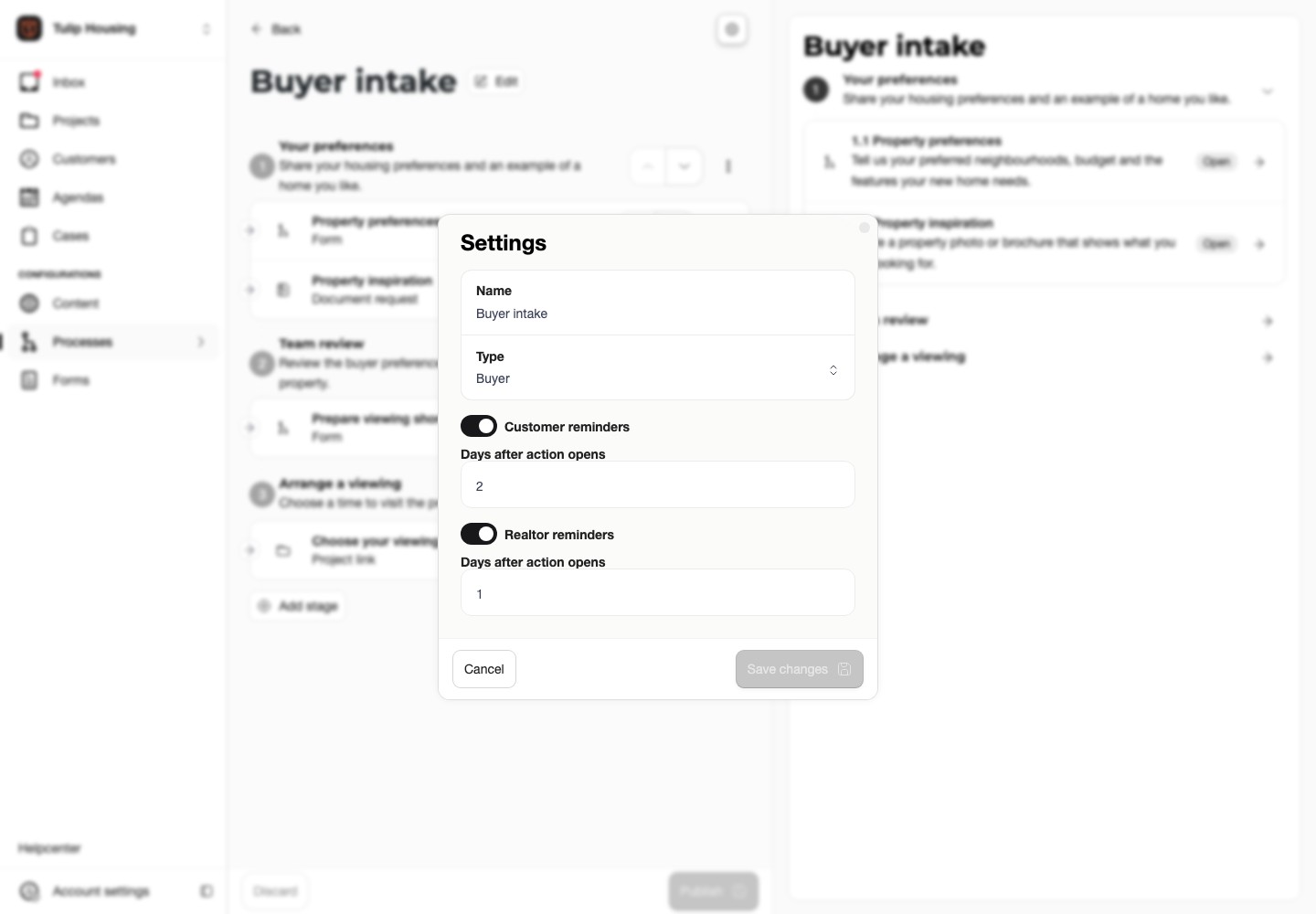
The process header's settings cog contains customer and team reminder controls. Enable them and enter the days after an action opens. Communication settings control the email content and case notification time zone. Reminders go to the assigned people; they do not assign a reviewer.
Review the preview and enabled languages. Check that tasks open the right forms or project actions, waiting instructions are clear, and completion rules open the intended next stage.
Choose Publish and make the process active before starting cases. Saving a draft alone does not make it available.
Existing cases keep their process version. Use Update case within an individual case to apply a newer published version while retaining its evidence and finished stages.
Continue with Cases.