
Kolibri
How Kolibri objects and appointments sync with Sparki.

Add-on
The Kolibri add-on connects Kolibri listings with Sparki projects, and can send confirmed Sparki appointments back to a Kolibri agenda.
Kolibri remains the source for object data. Sparki stores a synced copy so the dashboard can create, link, and refresh customer-facing projects from it.
The Short Version
Kolibri can provide Sparki with object assignments for the portal. Sparki stores those objects as synced Kolibri items, makes them selectable in the dashboard, and uses them to prefill project information such as title, address, price, description, status, images, floor plans, and other listing details.
A synced Kolibri item does not create a Sparki project by itself. A team member imports it from the projects overview or links it to an existing project in the dashboard. After that, future Kolibri updates can refresh the linked Sparki project with the latest synced listing data.
Kolibri object is available or changes
        |
        v
Sparki syncs the Kolibri object assignment
        |
        v
Sparki stores or refreshes the synced Kolibri item
        |
        v
Dashboard creates or updates a linked Sparki project
        |
        v
Later Kolibri updates can refresh the linked project
Before You Start
The Kolibri add-on must be available for the portal before it can be configured. If the card is locked or unavailable, contact Sparki support to enable it for the right portal and plan.
You also need the Kolibri connection details for the broker office. The exact values are usually provided by the Kolibri administrator or technical contact:
| Setting | Purpose |
|---|---|
| API base URL | The Kolibri API environment Sparki should use. |
| Authorization token | The secret token Sparki uses to read Kolibri objects and write agenda items. Sparki hides this value after it is saved. |
| Real estate agency ID | The Kolibri agency or organization that owns the synced objects. |
| Office IDs | Optional office filters when only specific offices should be synced. |
| Employee IDs | The Kolibri employees or agenda owners that can receive appointment write-back. |
| Webhook secret | A shared secret used to verify Kolibri change notifications when webhooks are enabled. |
Enabling Kolibri
Open the portal menu and choose Add-ons. Select Kolibri, then complete the connection settings for the portal.
Settings Toggles
The Kolibri settings page has separate switches for separate sync flows. Do not read Outbound as email, messages, or a general direction label. In this add-on it means Sparki-to-Kolibri appointment write-back.
| Toggle | What it does | Turn it on when | Turn it off when |
|---|---|---|---|
| Use mock Kolibri connection | Uses Sparki's test Kolibri connection instead of the saved live Kolibri API URL, token, webhook secret, agency id, office ids, and employee ids. | You are developing or testing locally and do not want Sparki to touch a live Kolibri office. | You are configuring a real customer portal that should read from and write to the customer's Kolibri environment. |
| Listings | Allows Sparki to read Kolibri object assignments, store synced Kolibri items, and keep linked Sparki projects refreshed from Kolibri object data. | You want Kolibri to be the source for project listing data such as title, description, address, price, status, images, floor plans, and object details. | You do not want this portal to import or refresh project data from Kolibri. Without it, new Kolibri object changes should not refresh linked projects. |
| Agenda | Allows Sparki to prepare the Kolibri employee or agenda targets that dashboard users can link to parent Sparki schedules. | You want Sparki schedules to be connected to Kolibri employees or agenda targets. This is required before appointment write-back can know which Kolibri agenda should receive appointments. | You only need listing sync and do not want dashboard users to connect Sparki schedules to Kolibri agenda targets. |
| Outbound | Means Sparki-to-Kolibri appointment write-back. Confirmed Sparki appointments are queued in the background and sent to the linked Kolibri agenda as create, update, or cancel actions. | You want appointments booked or managed in Sparki to appear in the linked Kolibri agenda. | You want Sparki to keep appointment data only in Sparki and not write agenda items back to Kolibri. |
For appointment write-back, the practical setup is: turn on Agenda, turn on Outbound, save the connection, sync agenda targets, and link the Sparki parent schedule to the correct Kolibri employee or agenda target. The Agenda toggle makes the target available to link; the Outbound toggle is the permission for Sparki to write confirmed appointments back to that target.
Kolibri does have a background appointment sync job. When a confirmed appointment is created, changed, or cancelled in Sparki, Sparki queues a Kolibri agenda sync event. That event is processed separately from the customer booking screen, which is why the dashboard text says the sync is asynchronous.
Important operator note: the current background appointment processors use the enabled Kolibri connection and the linked schedule as the hard requirements for write-back. The outbound domain is saved as the intended permission flag, but it is not the only stop lever in the current backend path. If you must stop write-back immediately, disable the Kolibri connection or disconnect the affected Sparki schedule from the Kolibri agenda target.
After saving, Sparki checks the connection and starts syncing the enabled Kolibri areas. If mock mode is enabled in a test environment, Sparki uses mock Kolibri data instead of live Kolibri credentials.
Testing Without Live Data
Use Use mock Kolibri connection when you want to test the Sparki flow without touching a Kolibri office. In mock mode, Sparki uses its built-in test Kolibri data for object sync, project linking, agenda targets, and appointment write-back checks.
Kolibri does not currently have the same dedicated Sparki Dev mode or smoke-test switch that Realworks has. If mock mode is off and Outbound is enabled for a linked schedule, confirmed Sparki appointments can be written to the configured Kolibri agenda target.
For a safe test phase, use this order:
- Test the Sparki setup with Use mock Kolibri connection enabled.
- If Kolibri needs to see real API traffic, ask for a sandbox, test agency, test office, or dedicated test employee agenda.
- Point the Kolibri settings and the linked Sparki schedule only at that test target.
- Keep Outbound off until you are ready to create real Kolibri agenda items in the selected target.
- Before switching to production, turn off mock mode, review the selected agenda target, and confirm that Outbound should really create appointments in the live Kolibri agenda.
Do not use a production Kolibri agenda for appointment testing unless the office explicitly accepts temporary test appointments there. The current Kolibri integration does not automatically add a smoke-test prefix or auto-cancel test appointments in a live Kolibri system.
Linking Projects
When Kolibri listings are synced, open Projects and choose Import Kolibri. Select the correct Kolibri object from the modal. Sparki creates the project directly from the synced Kolibri item, fills the project fields, copies images and floor plans, and stores the hidden Kolibri link.
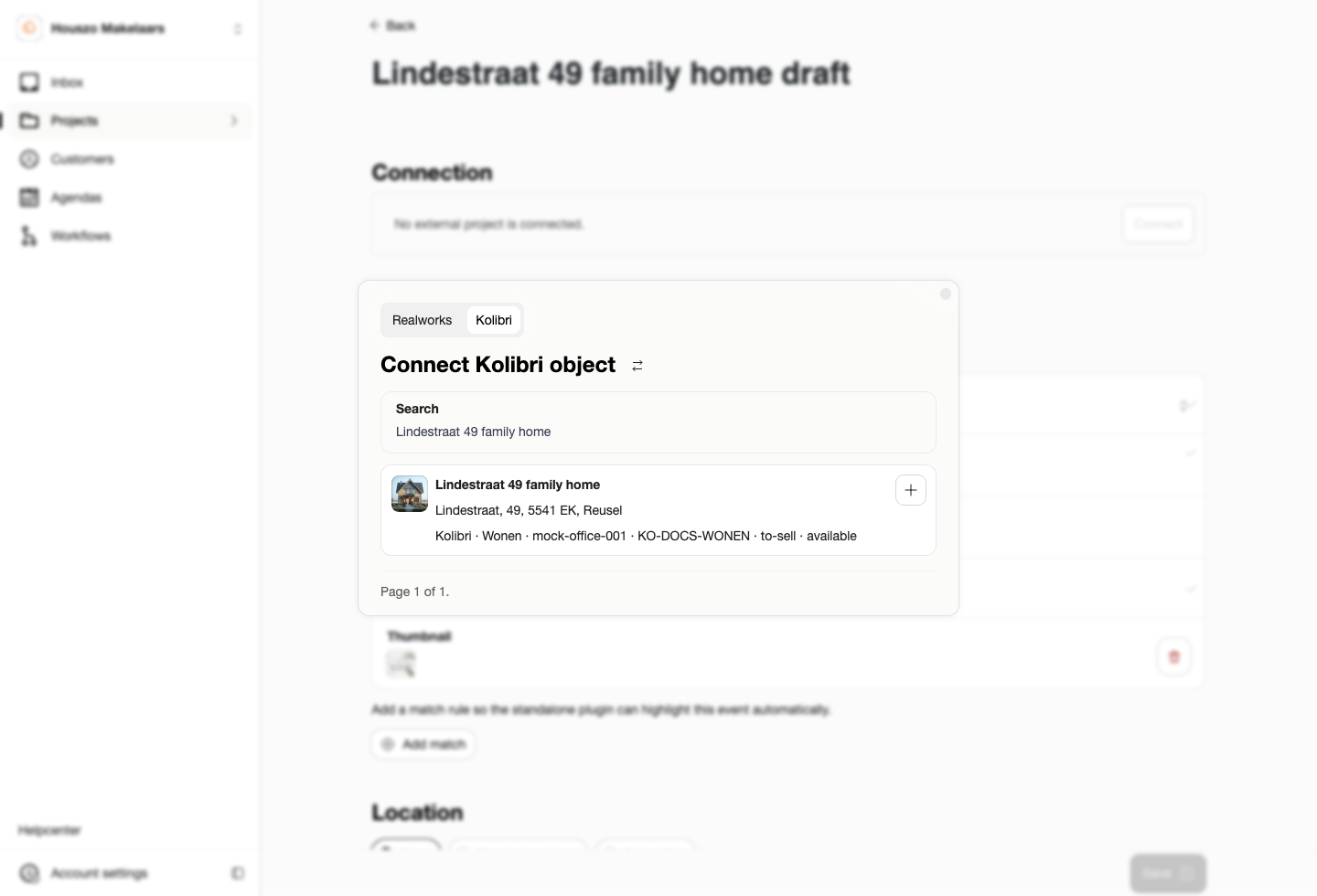
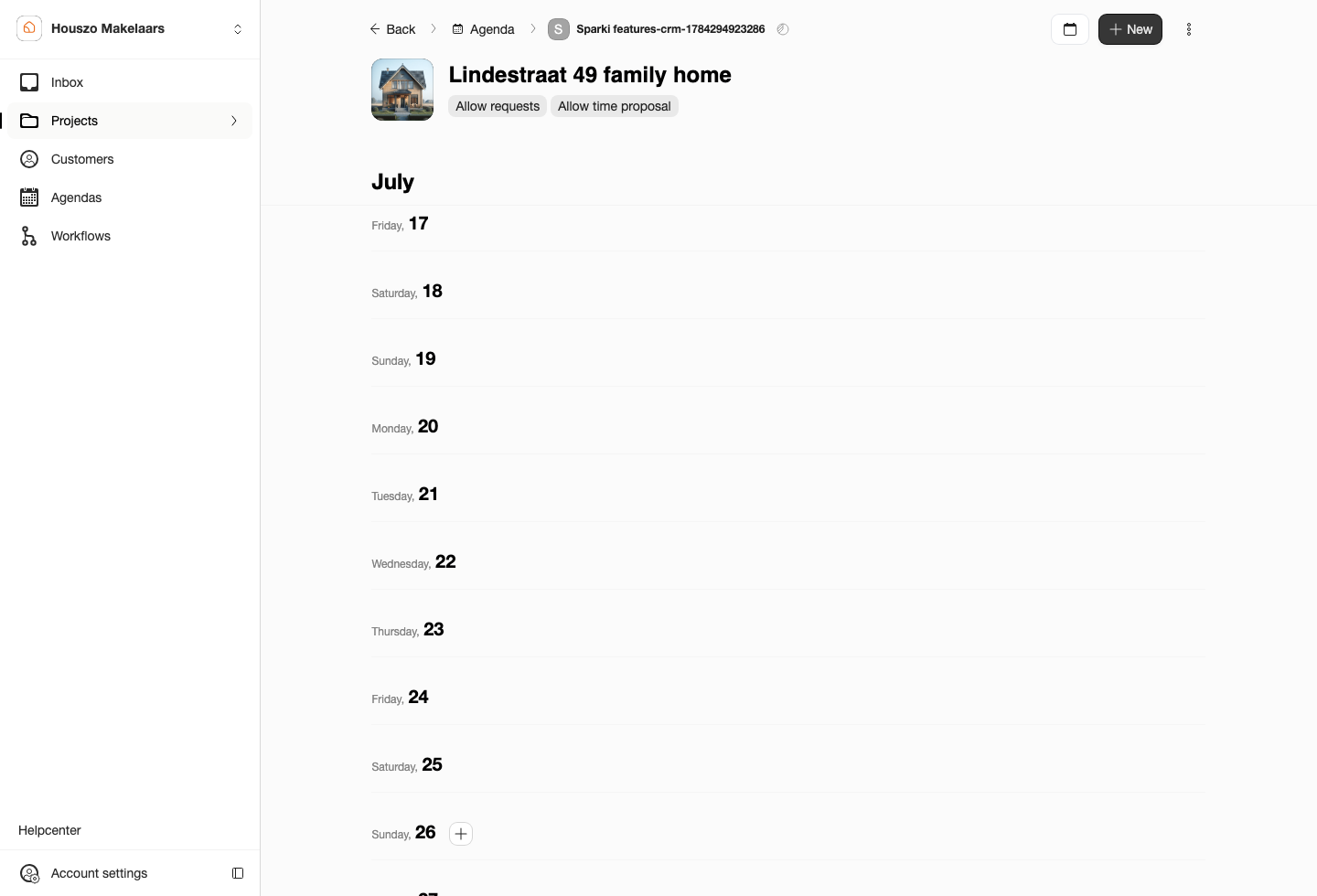
The existing project settings flow remains available for projects that were created manually first: open the project, choose Kolibri as the project source, select the synced item from the list, and save the project.
Sparki stores a hidden Kolibri link on the project. That link keeps the Sparki project connected to the synced Kolibri item, so later object changes can refresh the fields that are managed by Kolibri.
Synced Kolibri item
        |
        v
Dashboard prefill
        |
        v
Sparki project fields are filled
        |
        v
Project is saved with a hidden Kolibri link
        |
        v
Later Kolibri updates can refresh the linked project
What Kolibri Data Goes Where
The table below describes the main visible project fields Sparki fills from a synced Kolibri item.
| Kolibri data | Sparki project field |
|---|---|
| Object title or address label | Project title. |
| Description and public listing text | Project description and long description. |
| Asking price, rent, or price label | Project price. |
| Sale, rental, and availability status | Project transaction type and status. |
| Street, house number, postal code, city, country, and coordinates | Project address and map location. |
| Property type and object details | Project category and detail rows. |
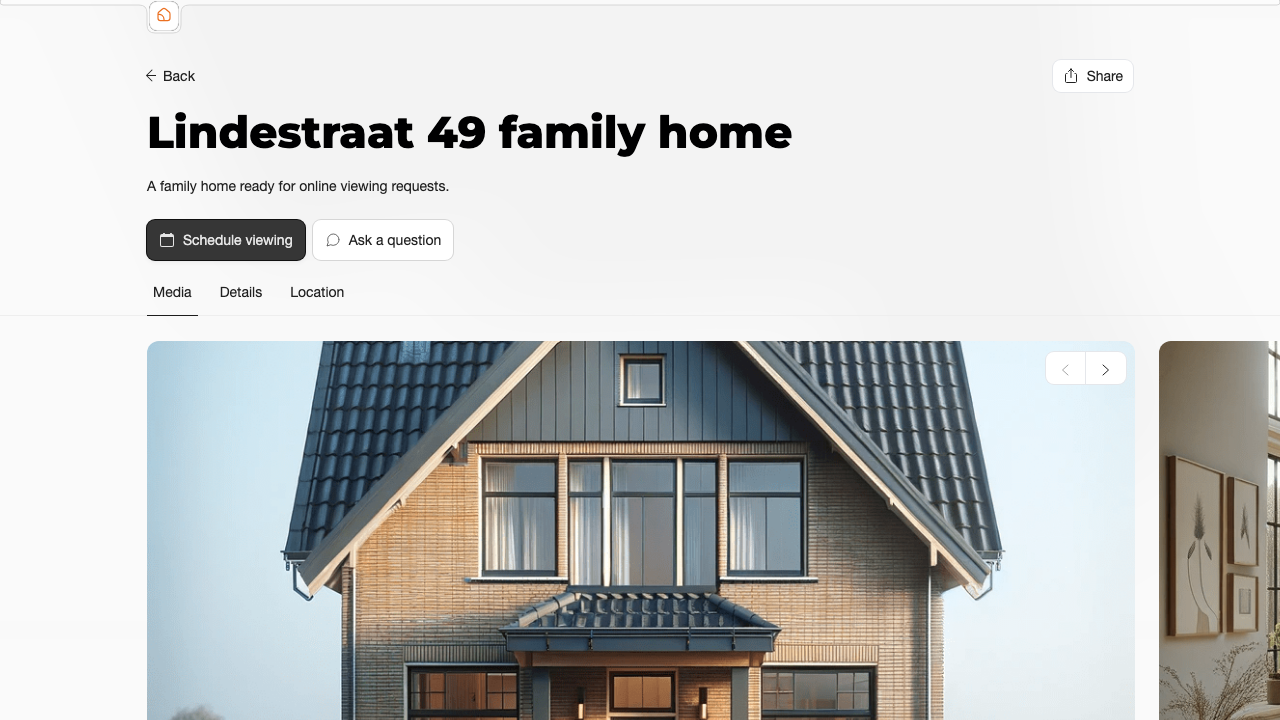
| Images, floor plans, and other public media | Project thumbnail, images, and floor plans. |
Sparki also stores technical Kolibri data that is not shown directly to customers, such as the Kolibri object id, source type, agency id, office or employee context, sync status, and the original synced response. This makes later refreshes and troubleshooting possible.
Updates After Linking
When Kolibri sends a change notification or Sparki runs a sync, Sparki refreshes the synced Kolibri item. If that item is linked to an active Sparki project, Sparki refreshes the project fields managed by the Kolibri source.
If a Kolibri object is withdrawn, deleted, or no longer available for the connected agency, Sparki marks the synced item as inactive. Sparki does not automatically delete customer-facing projects. Review the linked project in the dashboard and decide whether it should stay published, be archived, or be disconnected from the Kolibri source.
Appointments Back to Kolibri
Appointment sync is separate from object sync. The intended configuration is that it runs when the Kolibri connection is enabled, the agenda and outbound domains are enabled, and the Sparki schedule is linked to a Kolibri employee or agenda target.
When a confirmed appointment is created in Sparki, Sparki can create a matching item in Kolibri. When that confirmed appointment changes, Sparki can update the Kolibri agenda item. When the appointment is cancelled, Sparki can cancel or update the matching Kolibri item if it was already synced.
Customer books or changes a confirmed appointment in Sparki
        |
        v
Sparki queues a Kolibri agenda sync event
        |
        v
Background processing checks the linked Kolibri agenda target
        |
        v
Sparki sends create, update, or cancel to Kolibri
        |
        v
Sparki stores the Kolibri agenda item id for later changes
The appointment data sent to Kolibri can include the schedule target, appointment time, customer name, customer contact details, project title, linked Kolibri object information, and a Sparki appointment reference for traceability.
Webhook URL
Each Kolibri integration has its own webhook URL. The URL uses the integration id, so one portal connection does not accidentally receive updates for another portal connection.
https://api.example.app/webhooks/kolibri/v1/{integrationId}Do not copy the example above with {integrationId} still inside it. Open the Kolibri add-on settings in the dashboard and copy the Webhook URL field from there. That field uses the configured API URL for the current environment.
When webhooks are enabled, Kolibri can notify Sparki when an object assignment or project assignment changes. Sparki verifies the notification with the configured webhook secret before refreshing the affected synced item.
Troubleshooting
If no Kolibri objects are visible, check that the Kolibri add-on is enabled, the listings domain is active, the API details are saved, and the agency or office filters match the objects you expect to see.
If a schedule cannot be connected, check that the agenda domain is active and that the correct employee IDs or agenda targets are configured.
If appointments do not appear in Kolibri, check that the outbound domain is active, the schedule is linked to a Kolibri agenda target, and the appointment is confirmed. Draft, pending, or cancelled appointments that were never synced before do not create new Kolibri agenda items.
If the Kolibri token or webhook secret changes, update the Kolibri add-on settings in Sparki and save them again. Sparki hides saved secret values, so paste the new value instead of relying on the old hidden value.