
Access & Members
Invite teammates, choose roles, and remove access safely.

Portal configuration
Members let a portal owner invite colleagues and decide what each person may change.
Use roles carefully so teammates can do daily work without receiving more access than they need.
You can find team access in the dashboard by selecting the correct portal, opening the portal menu, and choosing Members. The page shows who can access the portal, whether each invitation has been accepted, and which roles each teammate has.
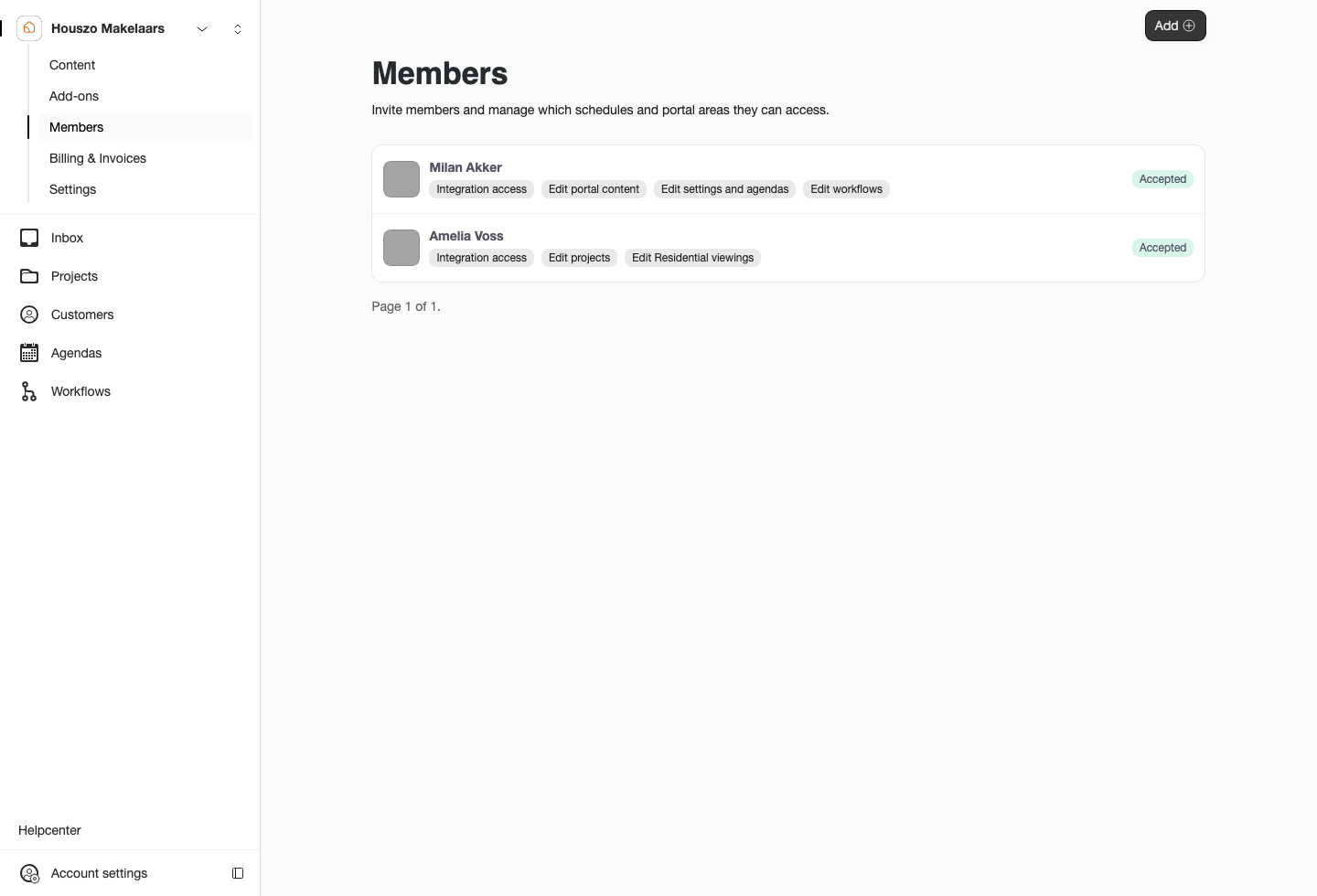
The Members page shows each teammate, the invitation status, and the roles that belong to that person.
Roles at a Glance
 Portal access
Base access for opening the portal in the dashboard and viewing most areas.
 Edit projects
Create and update listings, services, images, appointment options, and bid settings.
 Edit workflows
Create and change customer question flows, conditions, and endings.
Edit portal and plugin content lets a teammate create and update the content customers see in the portal and plugin. Edit portal settings lets a teammate change settings, design, sidebar settings, add-ons, and create agendas. Agenda access is handled per agenda.
Inviting and Removing Members
Open Members, choose Add, and enter the teammate's name, email address, phone number, and language. After saving, Sparki sends an invitation email.
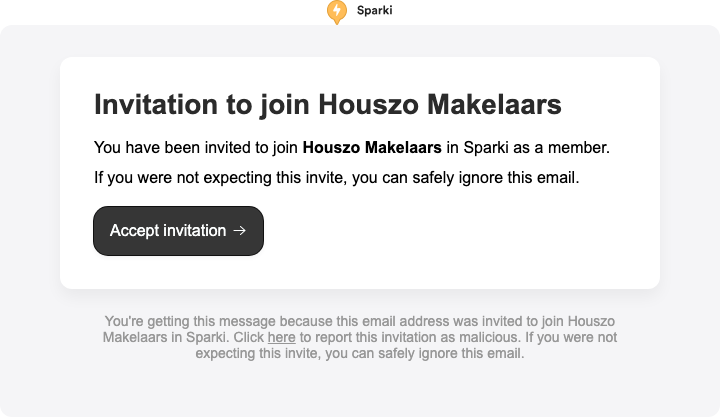
The invitation email sends the teammate to Sparki so they can accept access to the portal.
Portal owners can remove a teammate from Members. A member can also leave the team themselves from the read-only Members page.
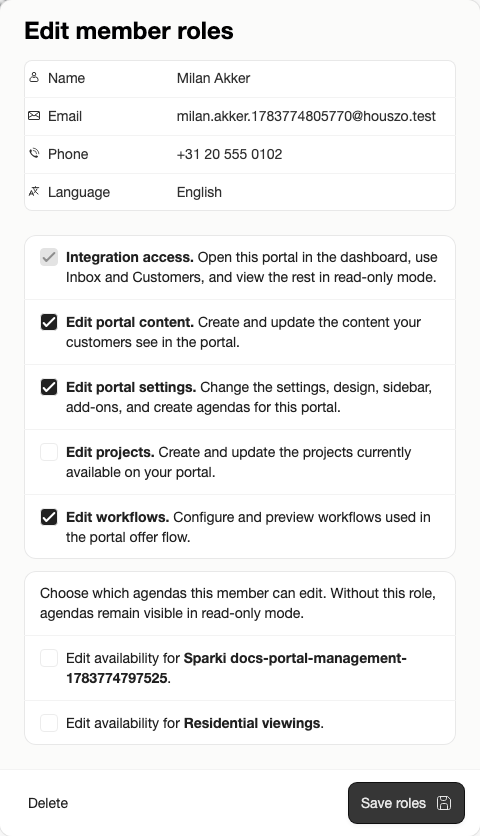
Owners can review roles before removing access, which helps avoid changing the wrong teammate.
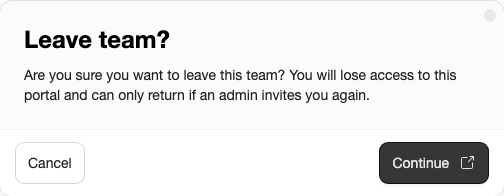
Members without management rights still have a clear way to leave the team from their own Members page.
Plan Notes
The Free plan is owner-only. Pro includes up to 3 members for the portal. Custom includes up to 10 members unless your agreement says otherwise.